
Sysadmin
- Sysadmin
- Sysadmin Guides
User Guide to setting up your laptop after the 365 migration
As the migration has been performed of your Old Microsoft 365 account to the Microsoft 365 account, there are a few things that need to be done on your Laptop. See below to the steps that need to be done to either your Windows or MacOS laptop.
Click here to download the PDF version of the user guide.
Microsoft Windows - With Login to Microsoft 365
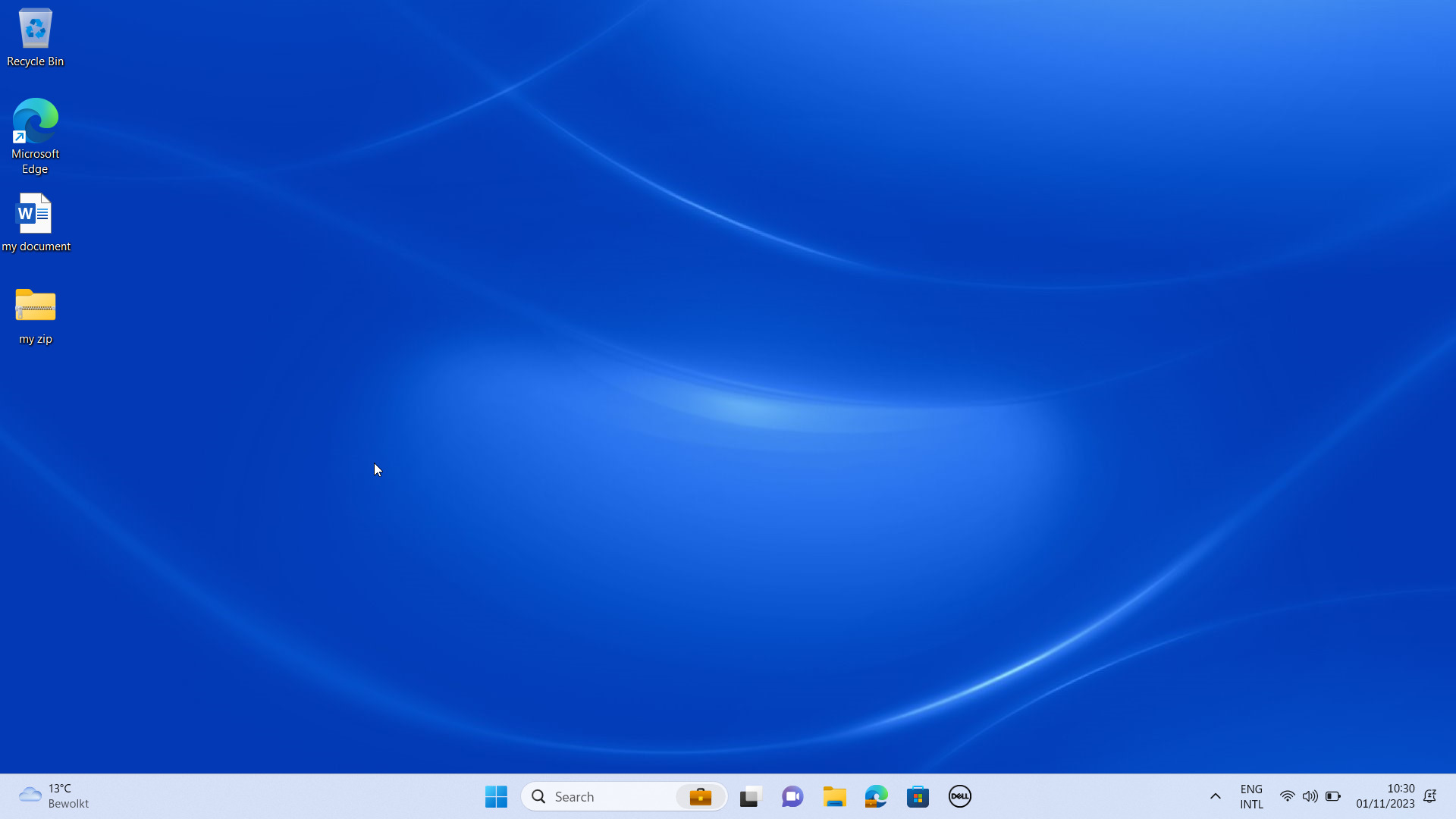 |
Log in to your windows laptop |
| Take not of which applications are in your quickbar, so you can set them up the same way after the changes have been done. | |
| Copy the contents of your desktop to a new folder on your C drive, for example “Migration”. Create this folder if needed. | |
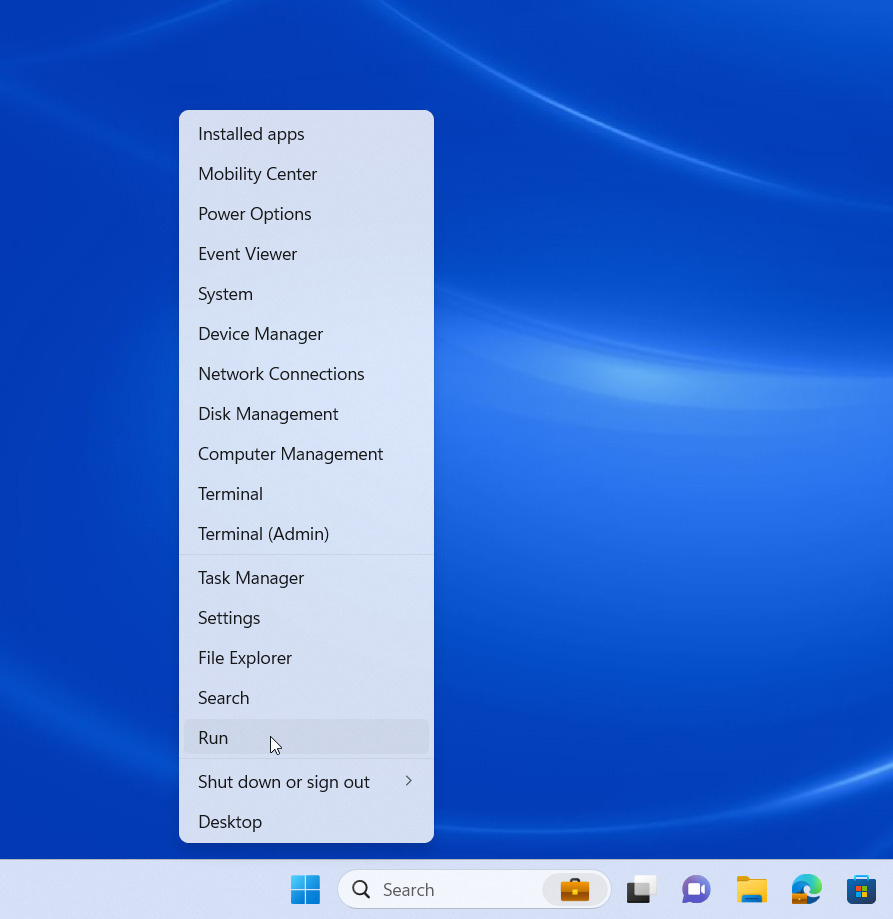 |
Right click on the windows logo, and choose “Run” |
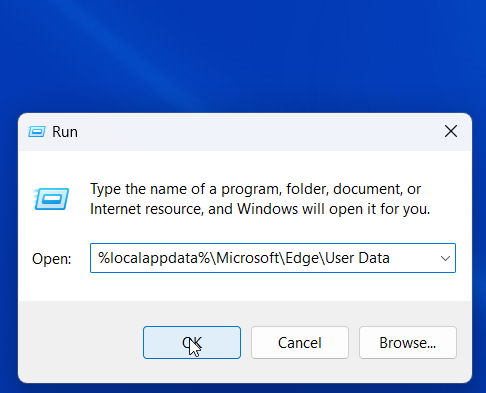 |
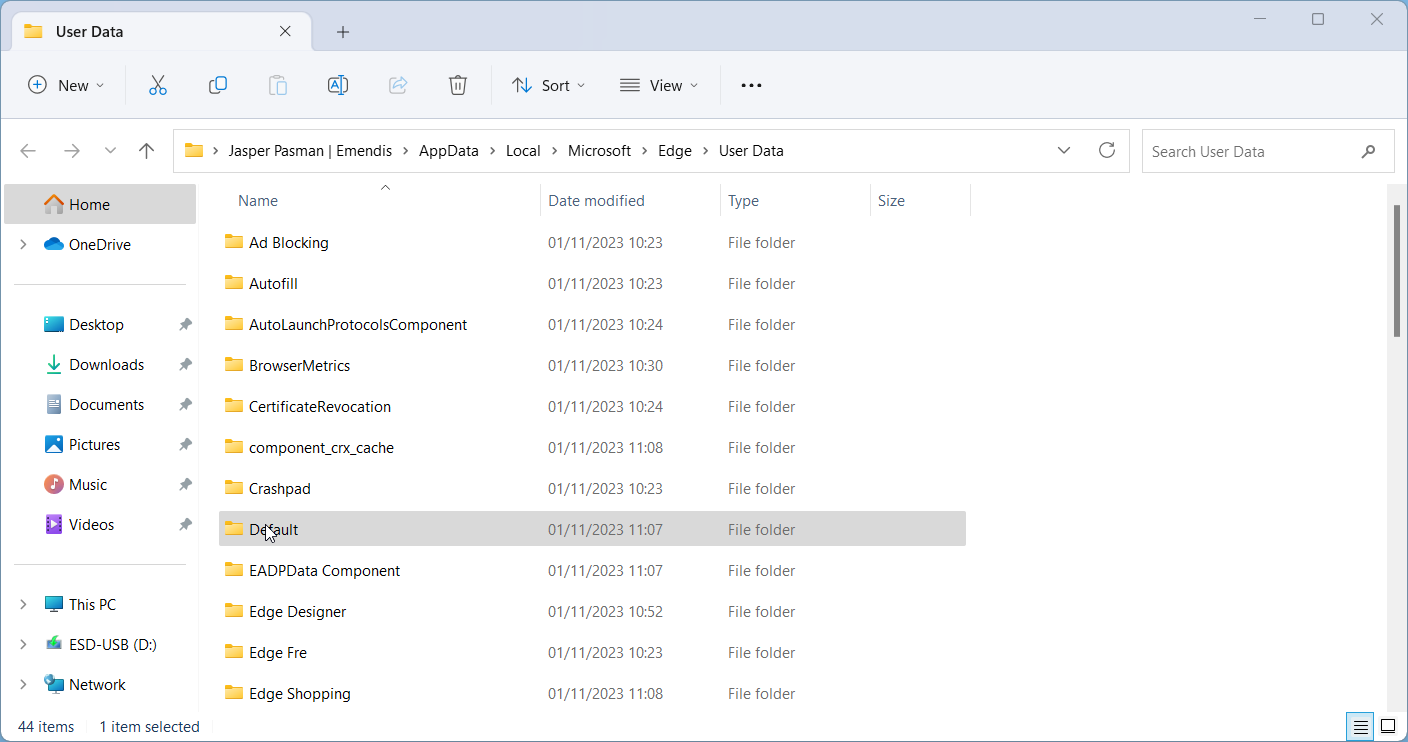
Insert the value “%localappdata%\Microsoft\Edge\User Data” and click the button “OK” |
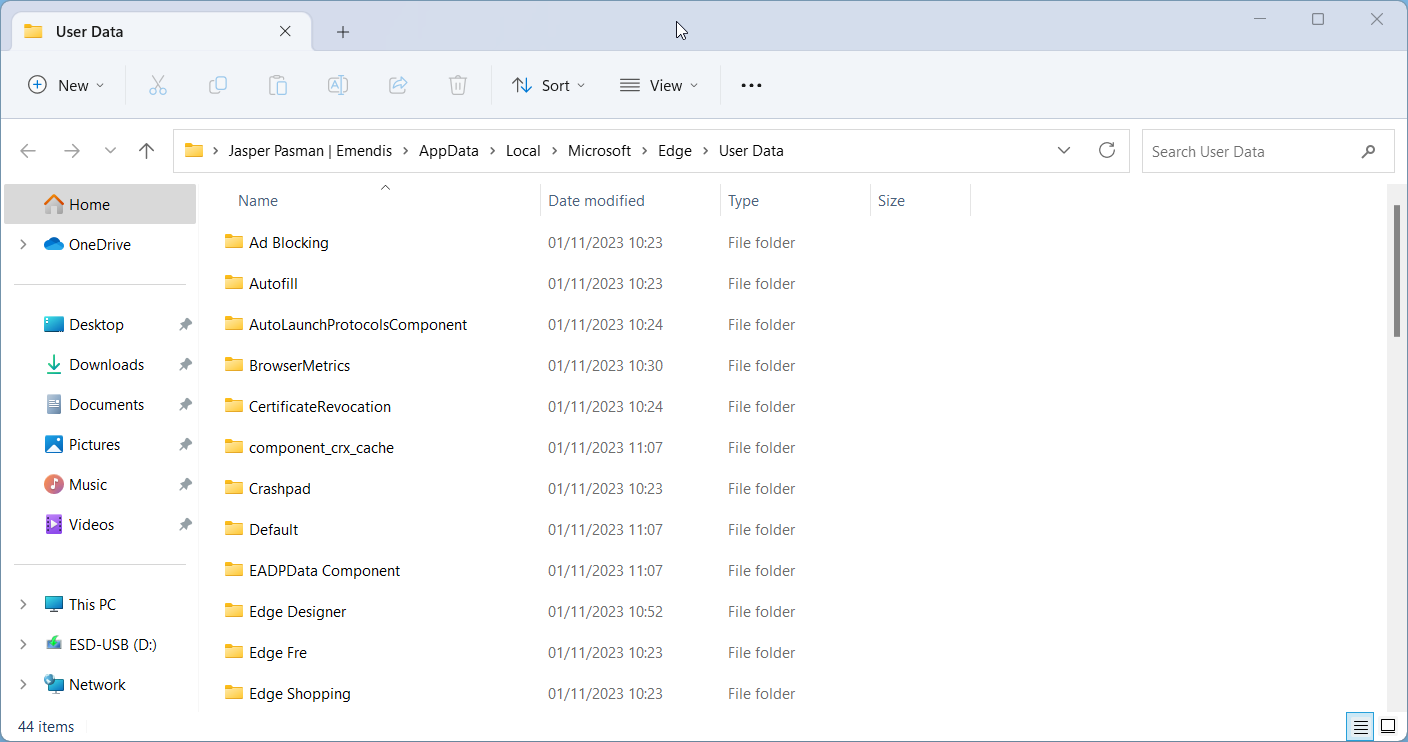 |
Locate the folder “Default” |
 |
Right click the folder |
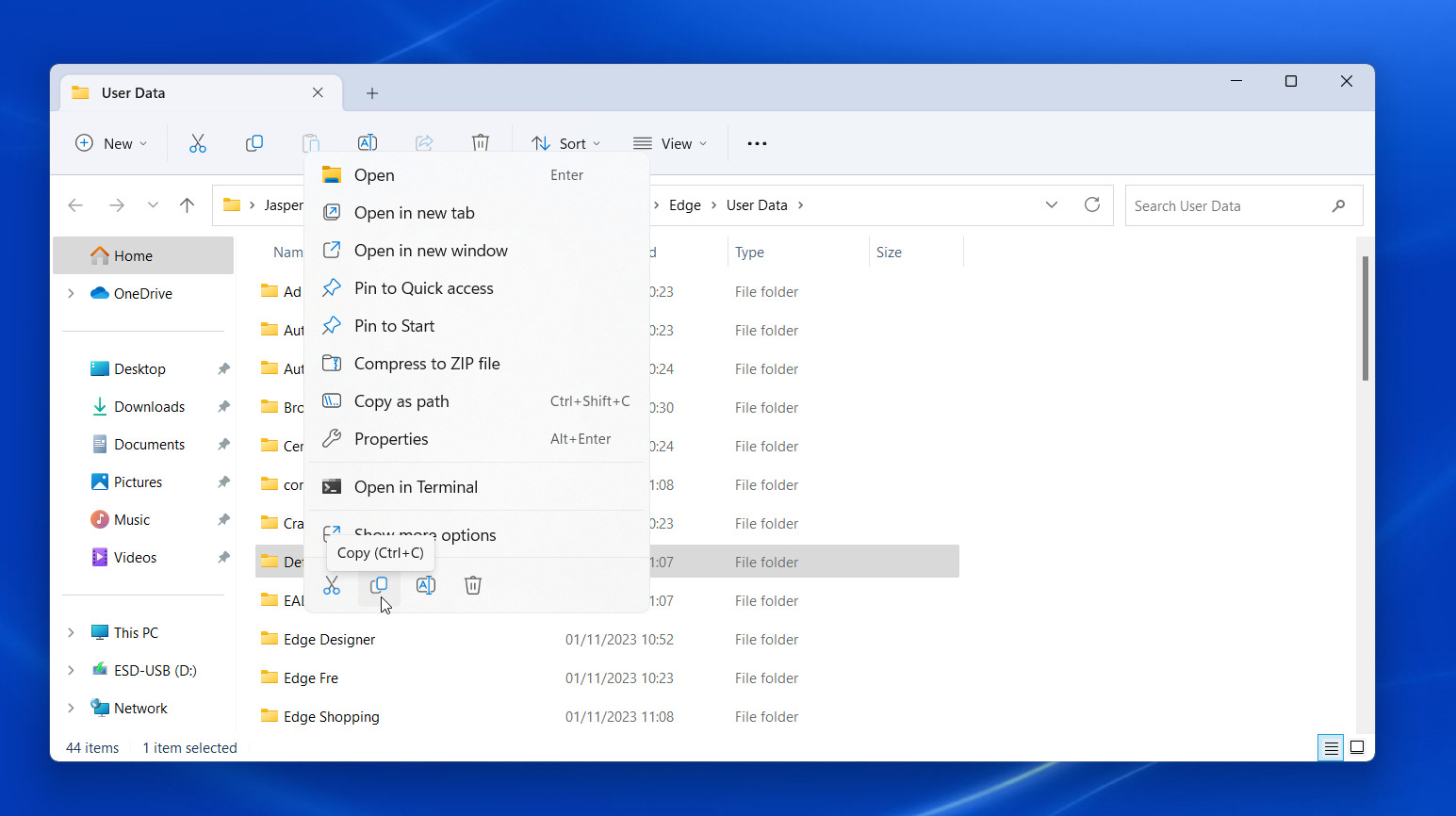 |
Copy the contents of your desktop to a new folder on your C drive, for example “Migration”. Create this folder if needed. |
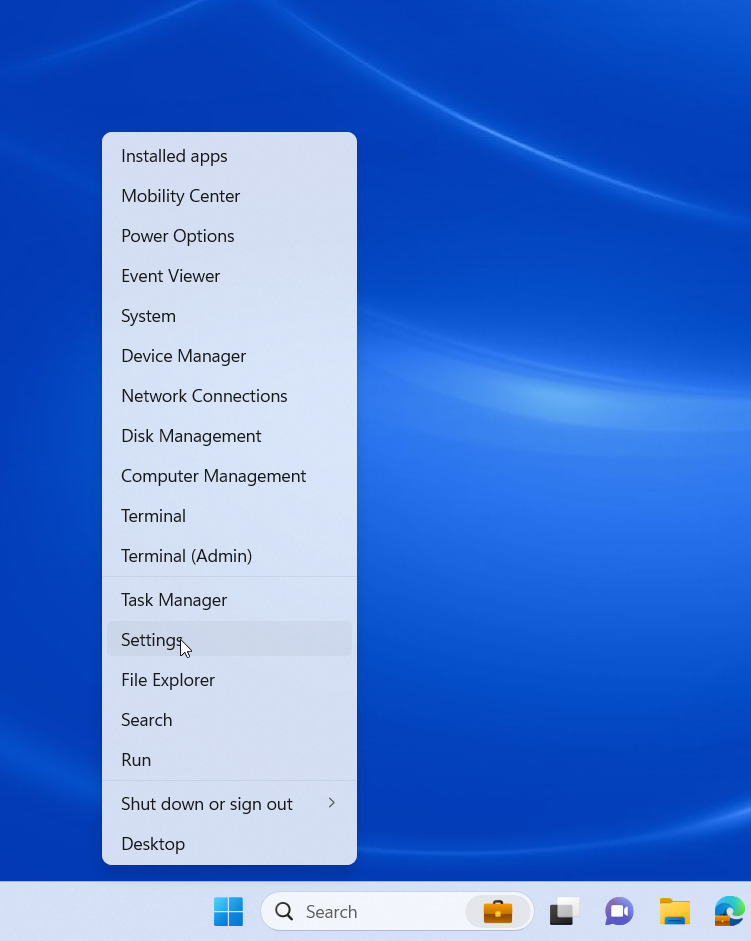 |
Right click in your menu bar on the Windows logo, and choose “Settings” |
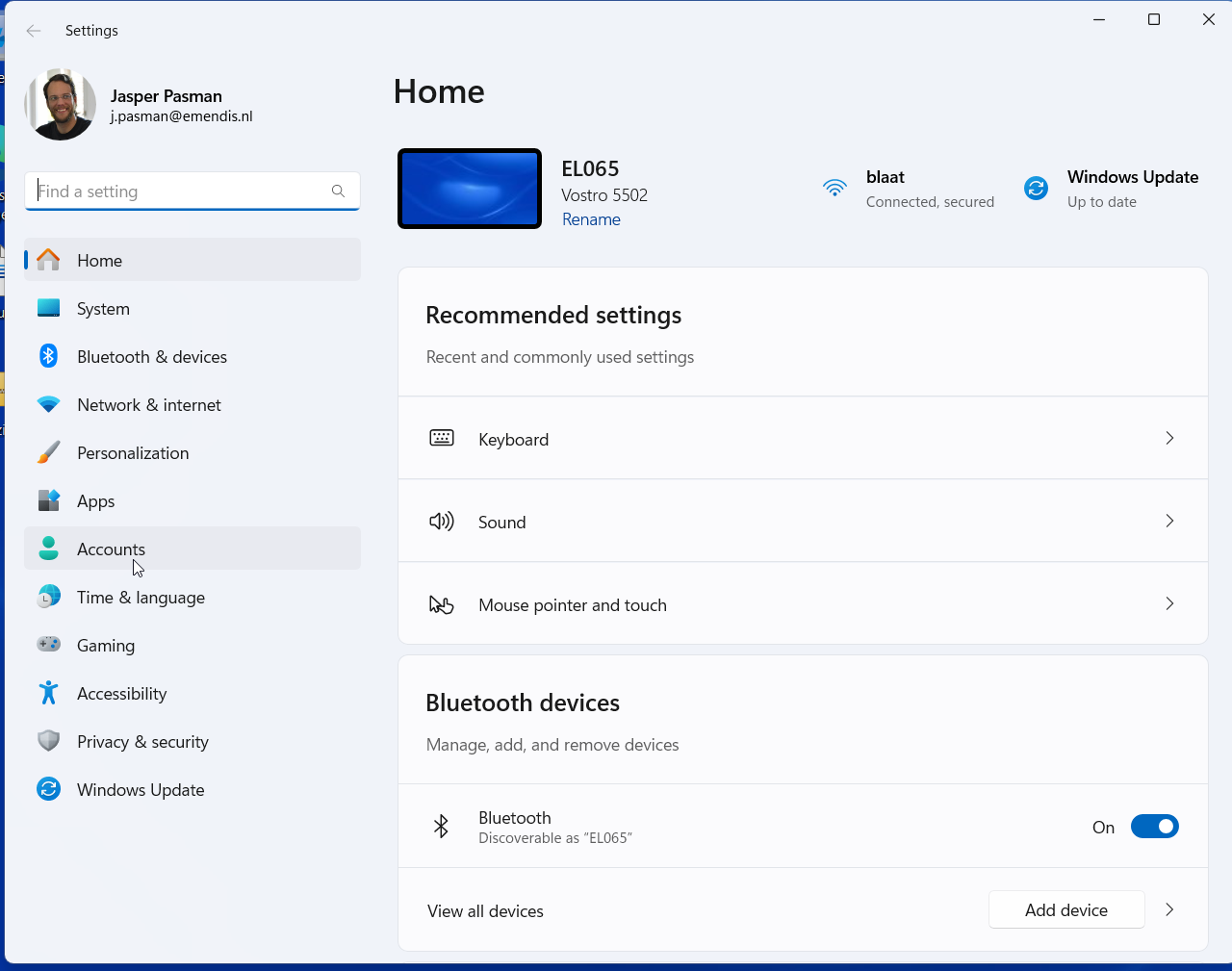 |
Navigate to “Accounts” |
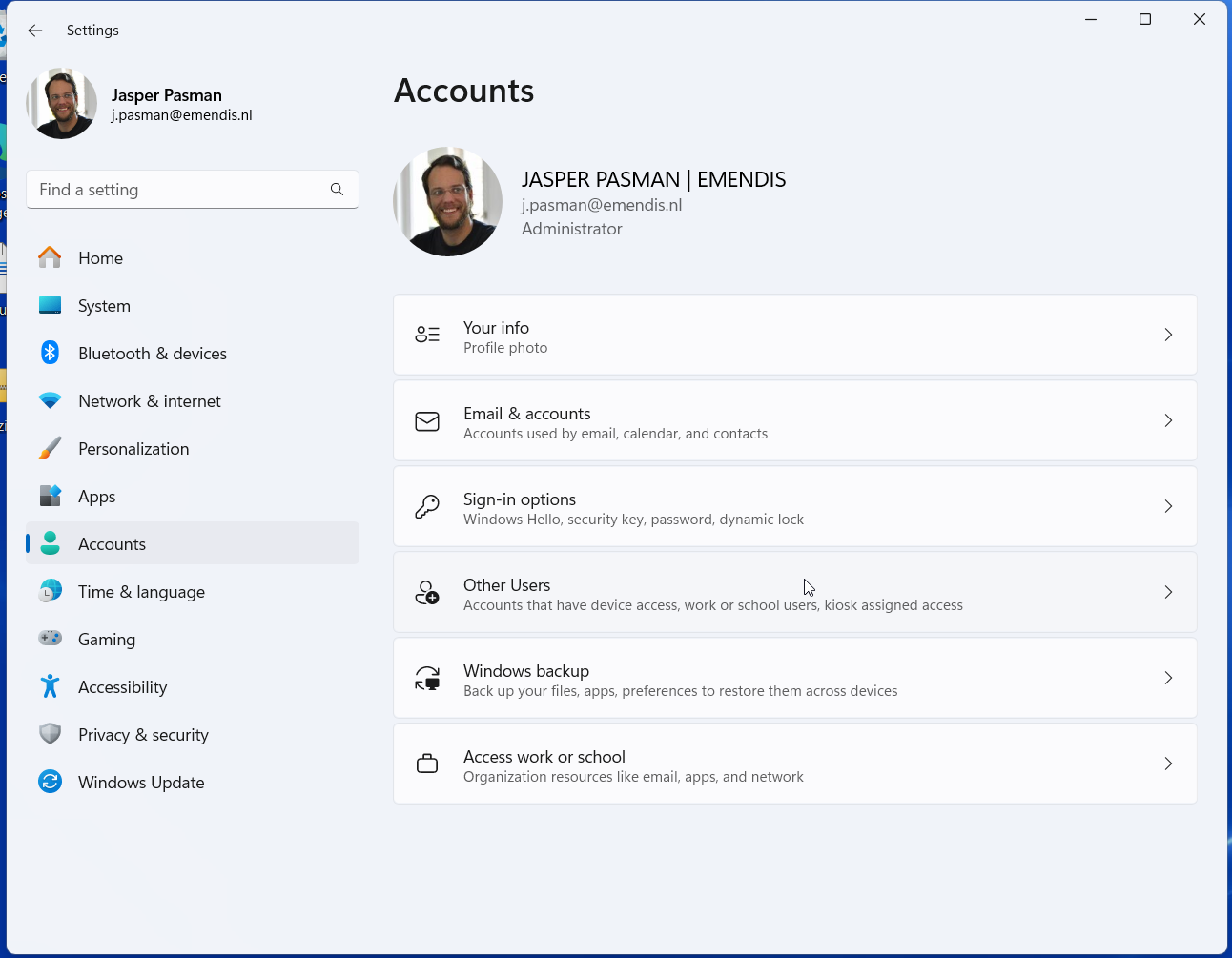 |
Navigate to “Other Users” |
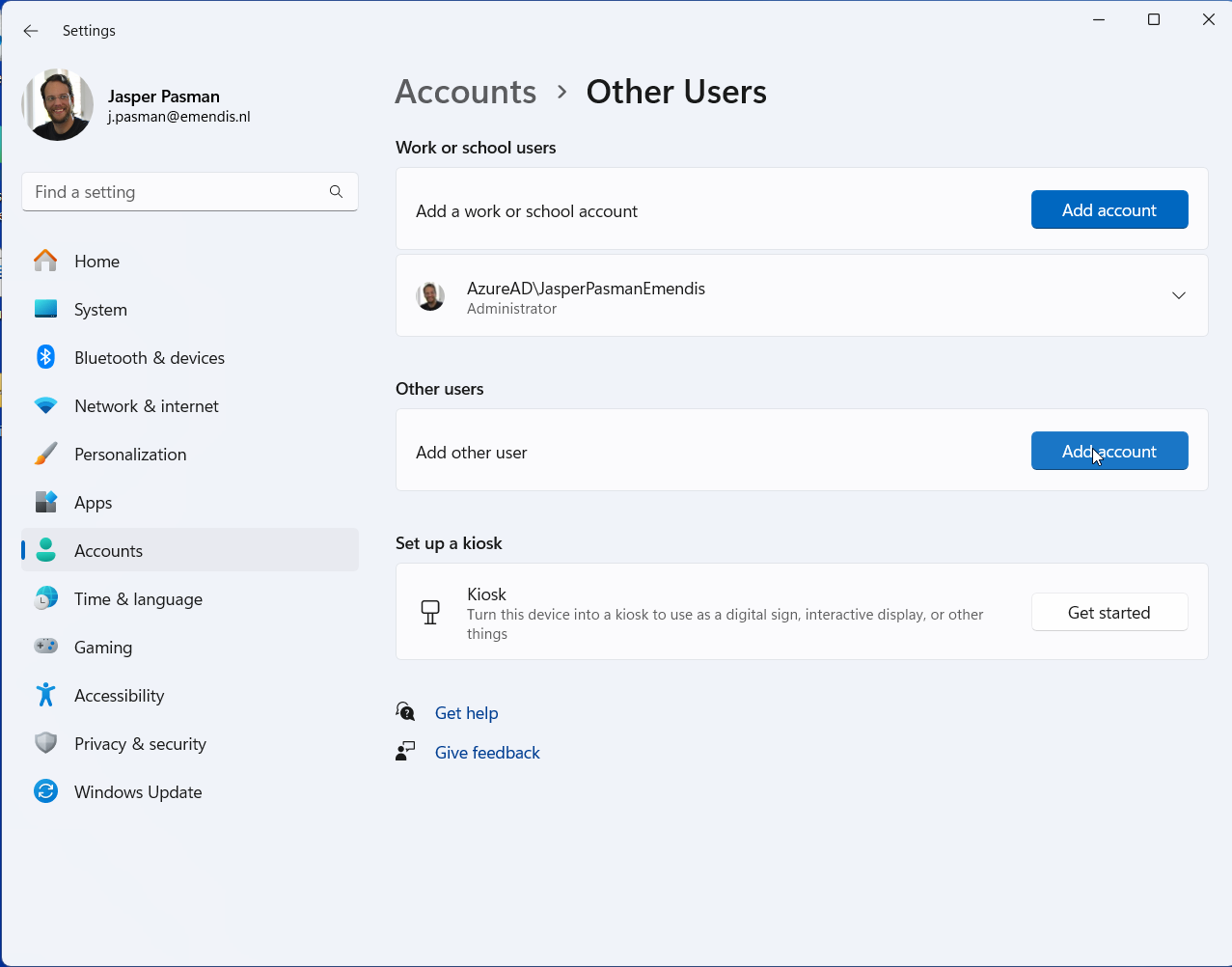 |
Click on the button “Add Account” |
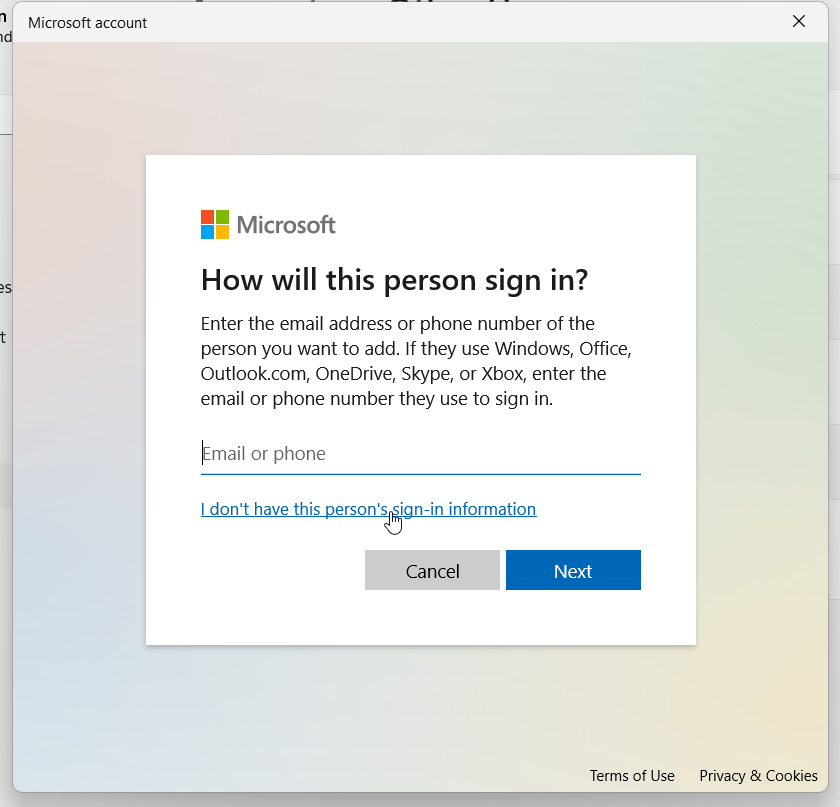 |
Click on the text “I Don’t have this person’s sign-in information” |
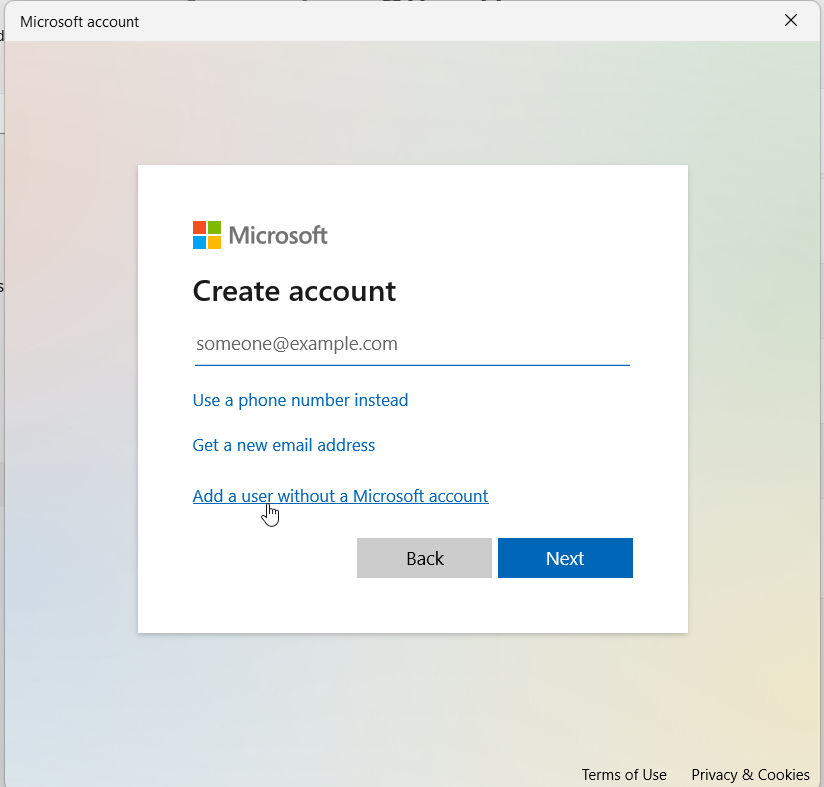 |
Click on the text “Add user without a Microsoft account” |
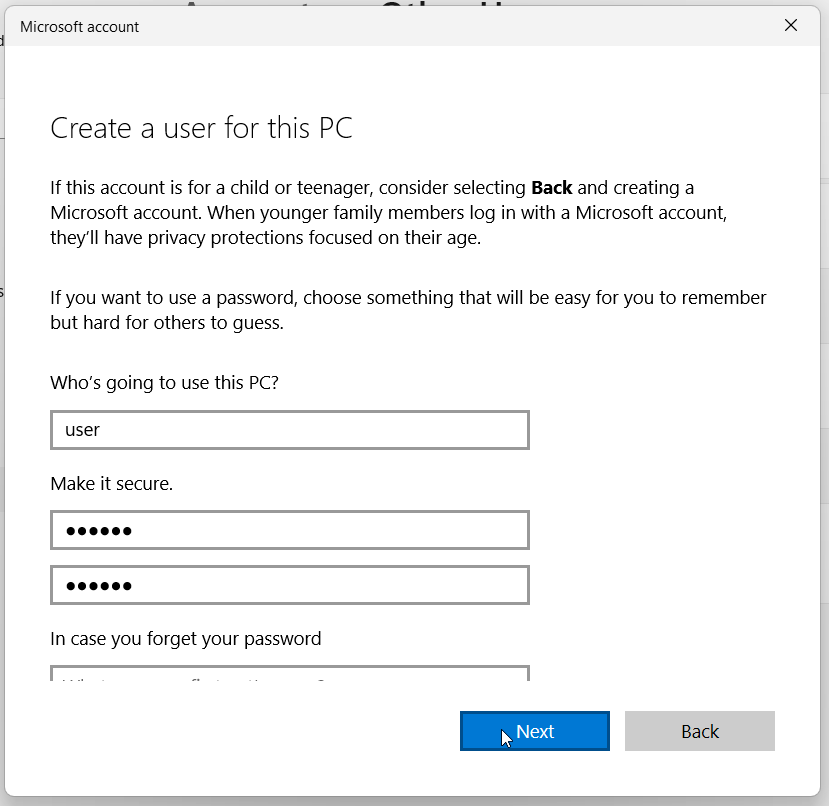 |
Fill in credentials you can remember for the time being, until the entire process has been completed |
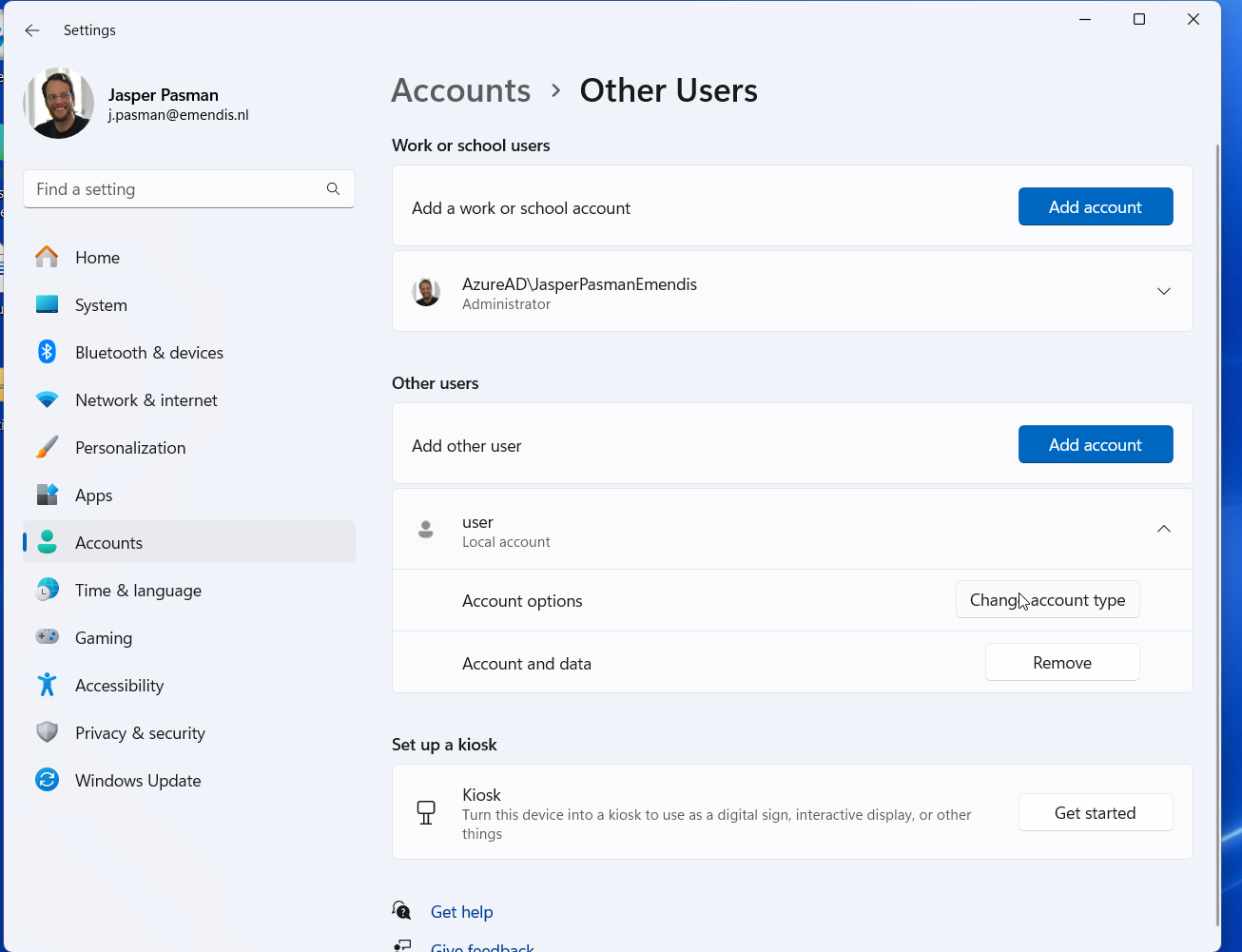 |
The new user should now be on the page that you return to. Click on the button “Change account type” |
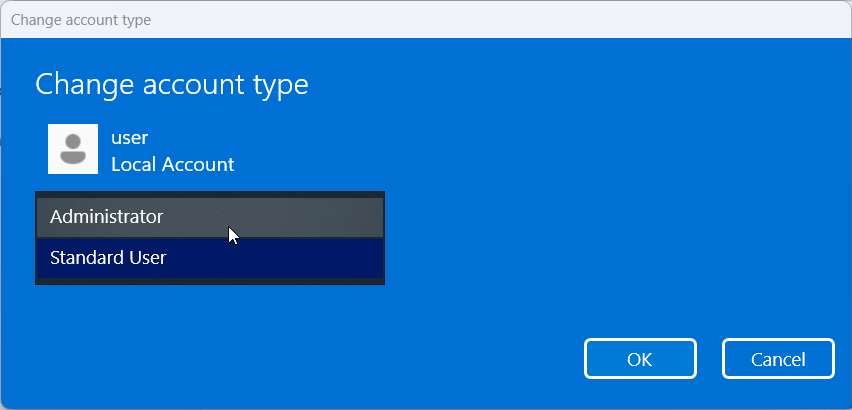 |
Change the account type to “Administrator” |
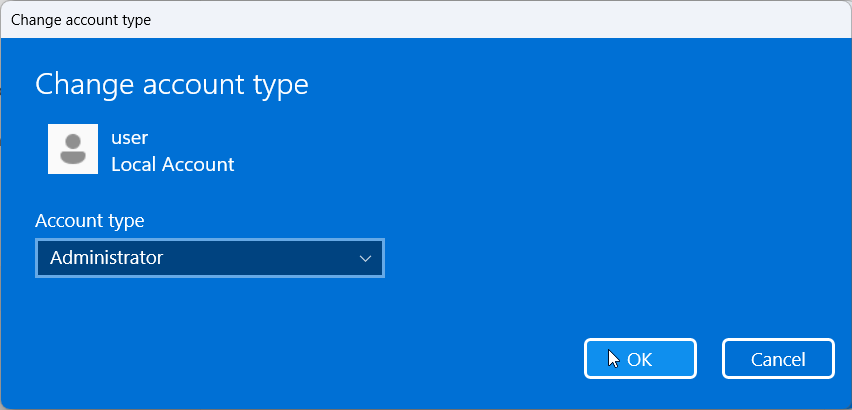 |
And click the button “OK”. |
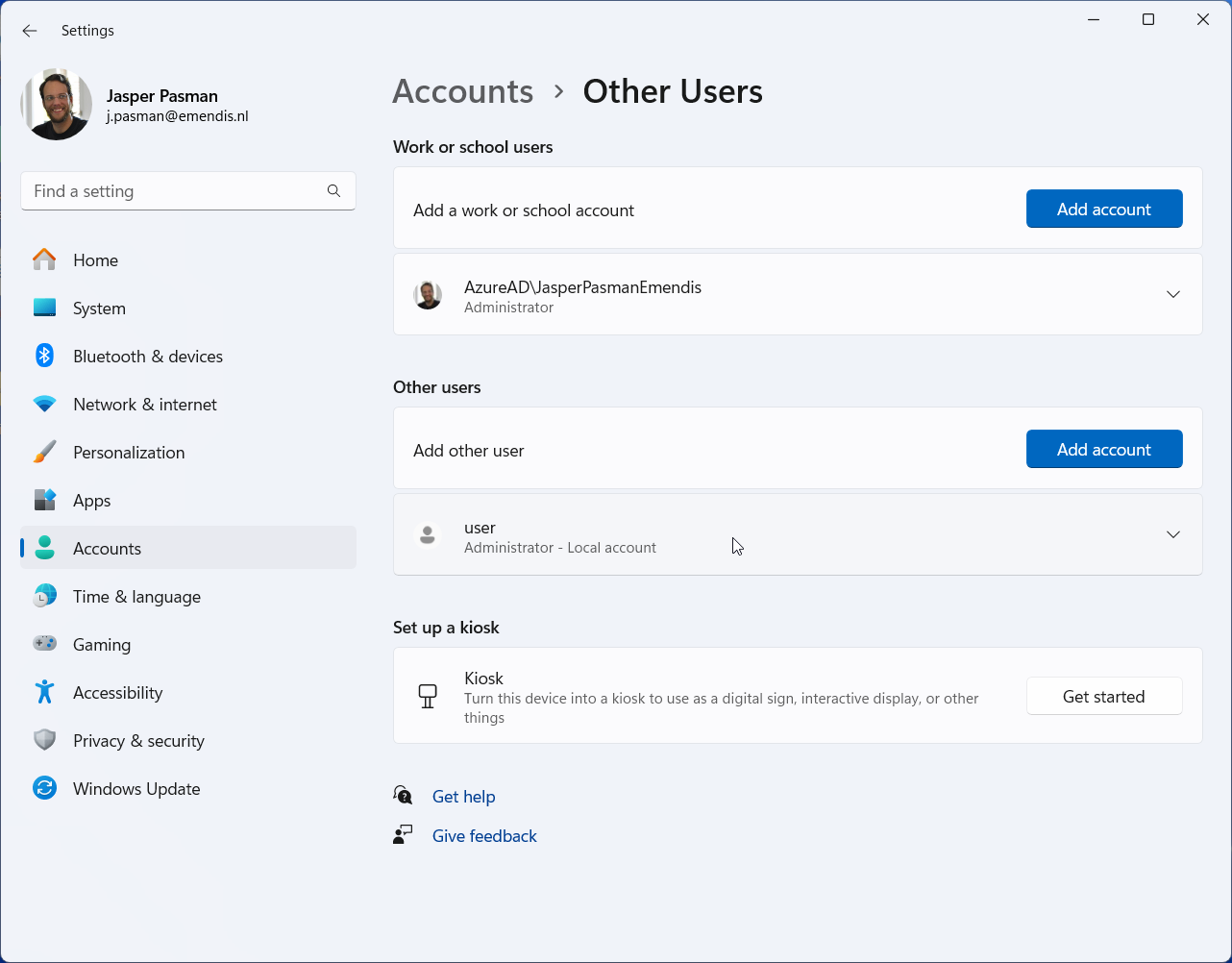 |
The user should now show as a Administrator. |
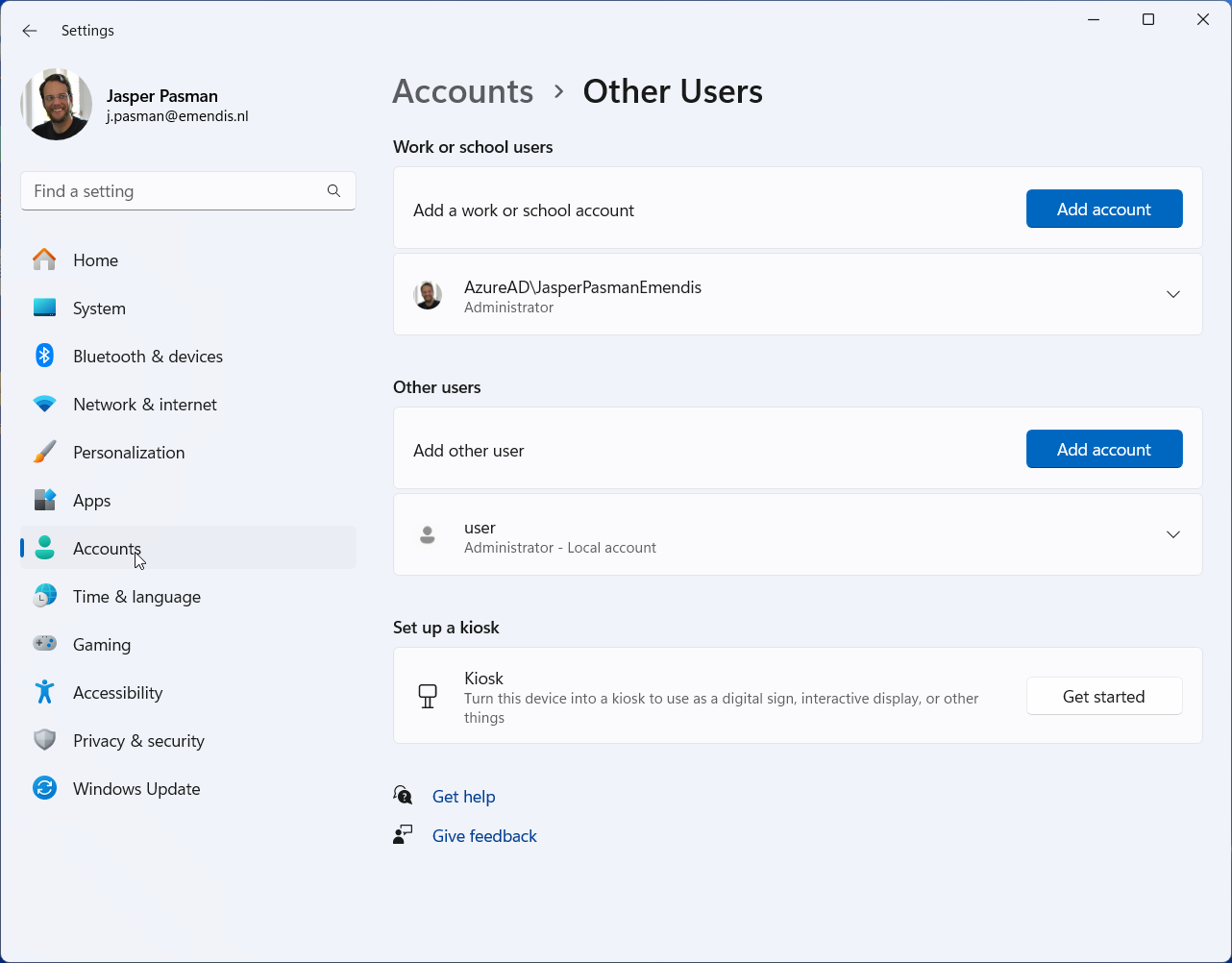 |
Navigate once more on the left side to “Accounts” |
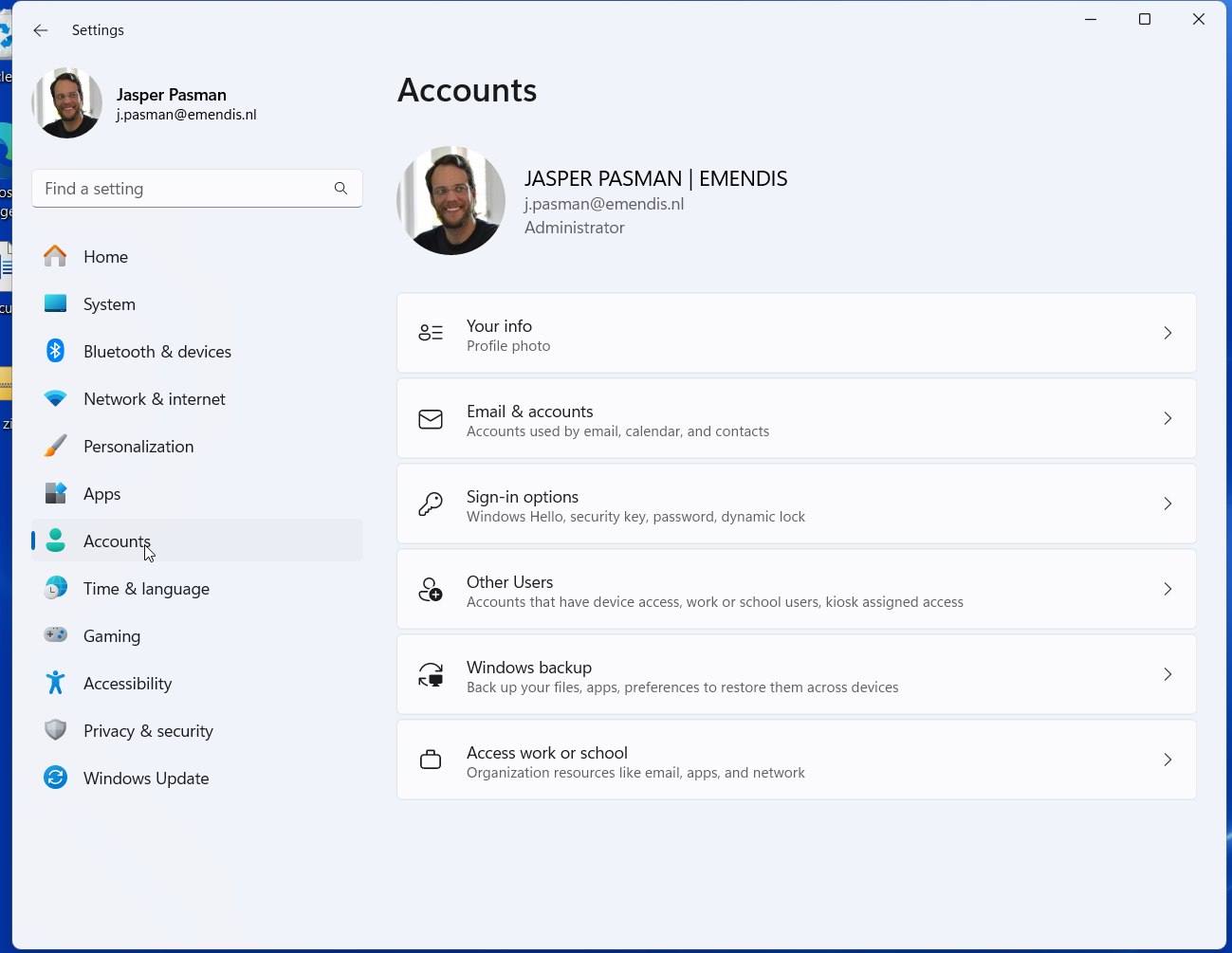 |
Navigate to “Access work or School” |
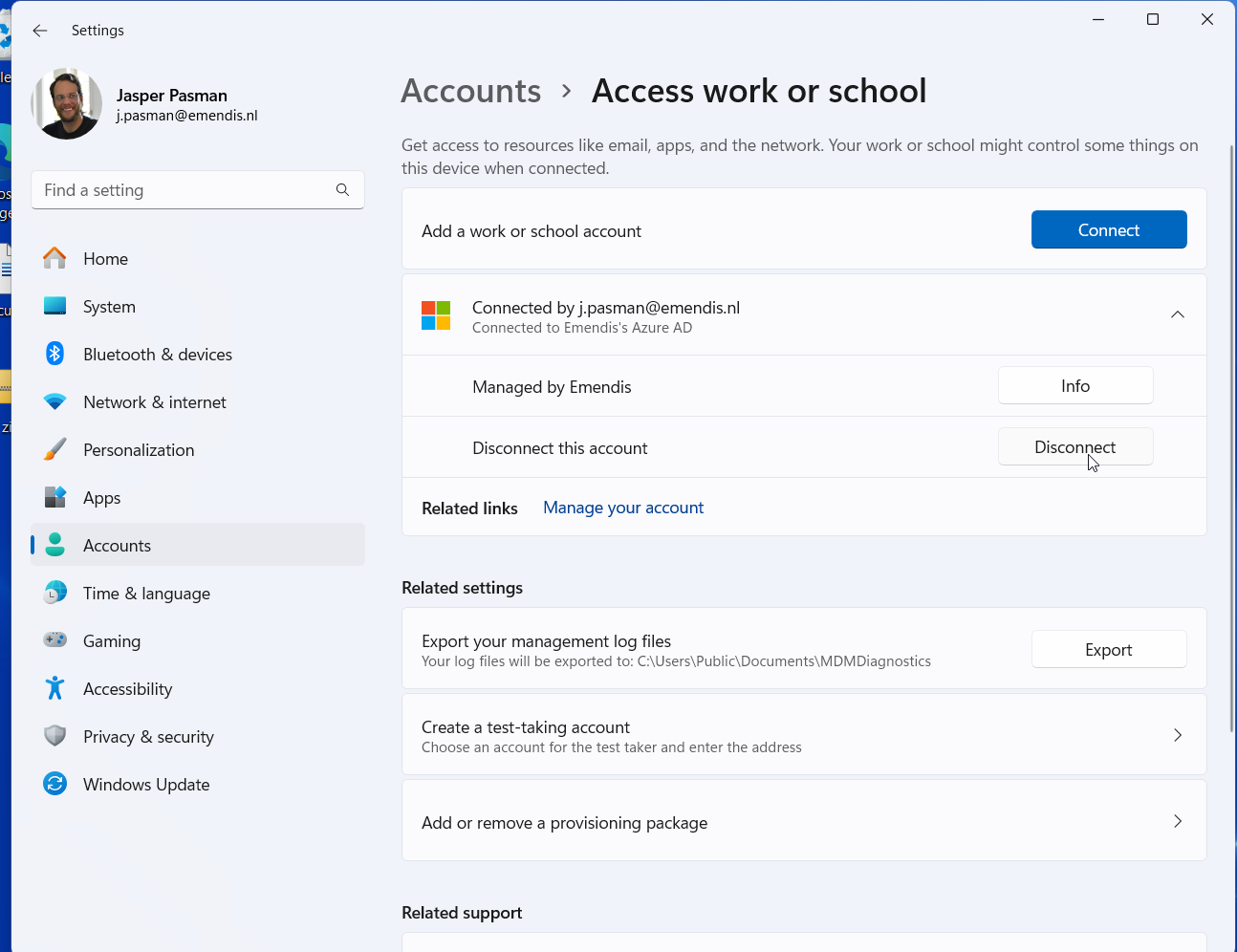 |
Uncollapse the Connection to your Emendis account, and click on the button “”Disconnect” |
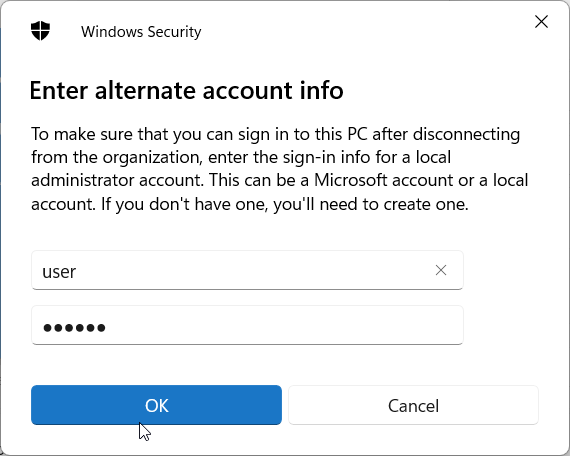 |
Insert the credentials of the local user created previously, and press “OK” |
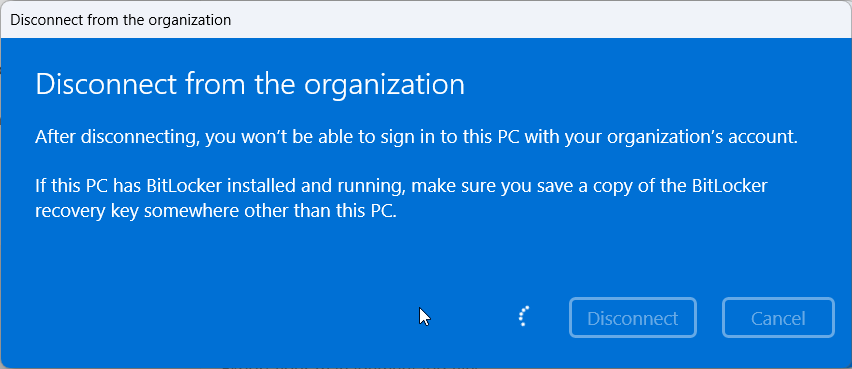 |
Confirm you wish to disconnect from the organisation, and wait. |
 |
After a reboot, log into your local account. |
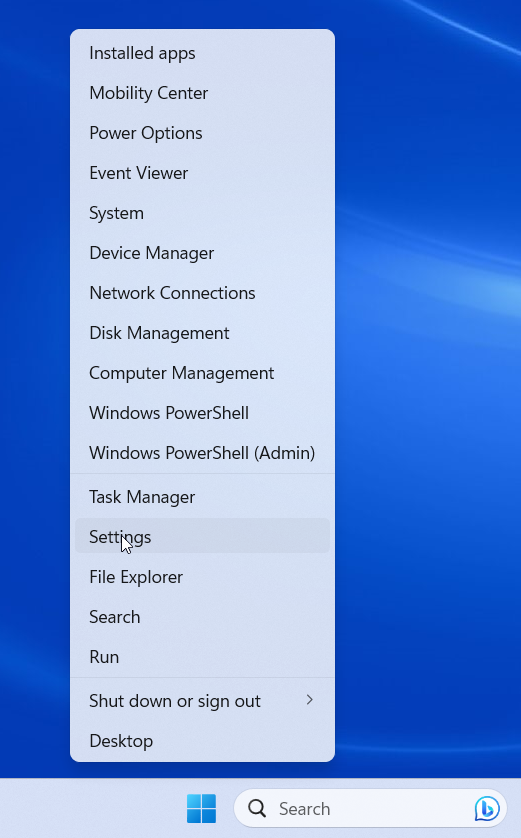 |
Right click in your menu bar on the Windows logo, and choose “Settings” |
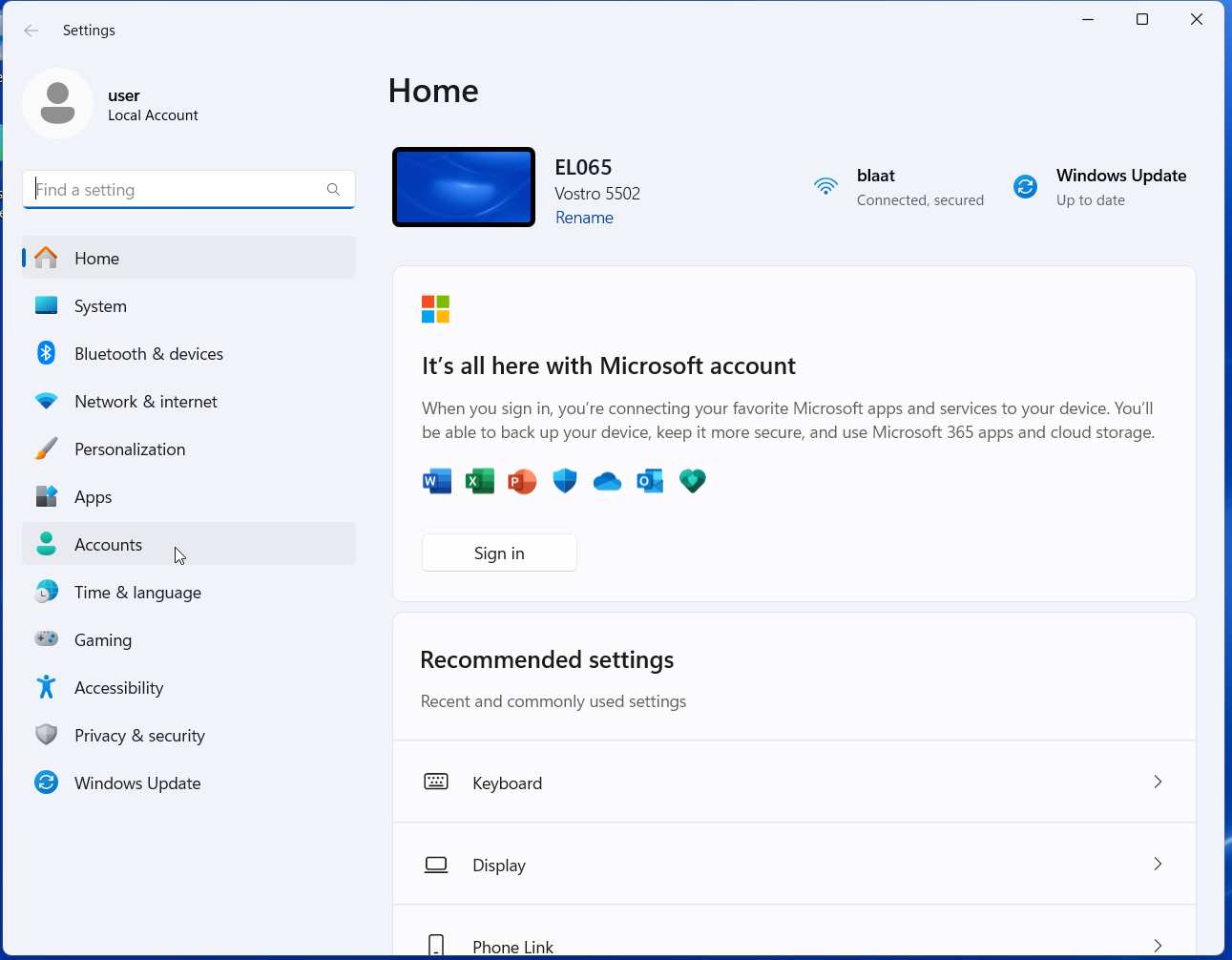 |
Navigate to “Accounts” |
 |
Navigate to “Access work or School” |
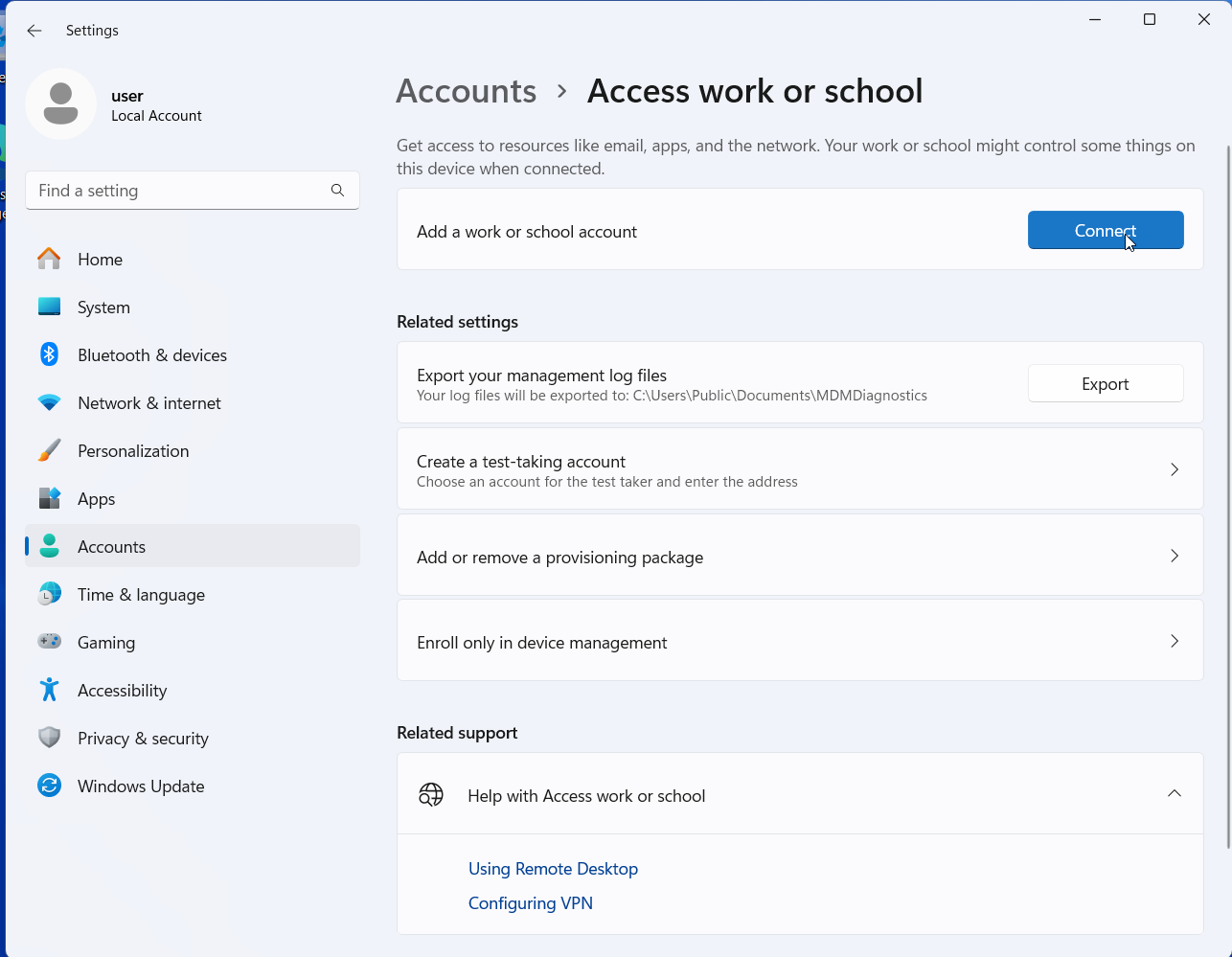 |
Click on the button “Connect” |
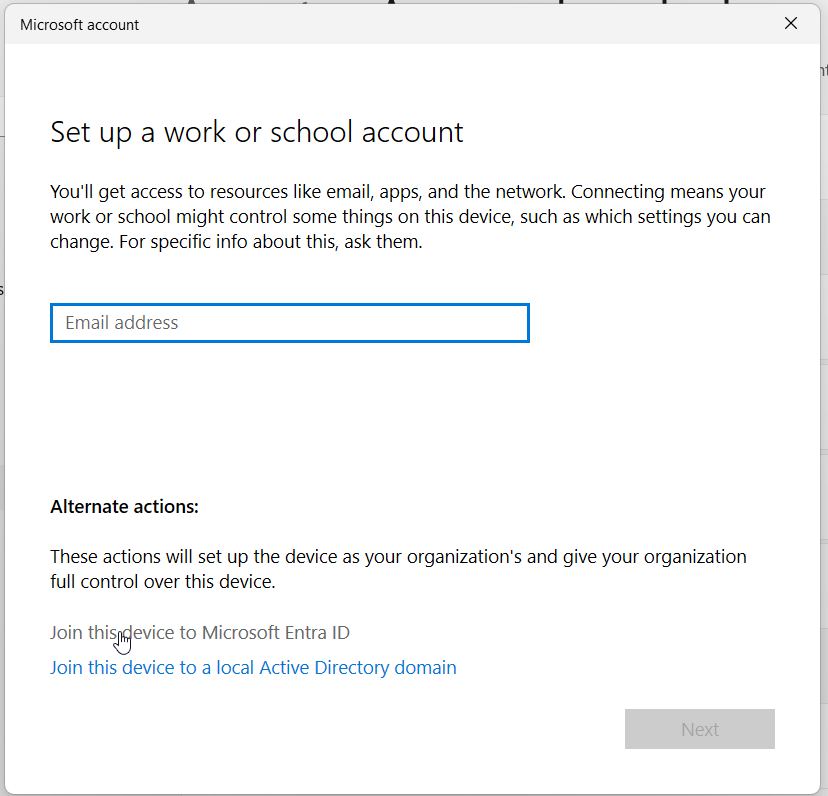 |
Click on the text “Join this device in Microsoft Entra ID” |
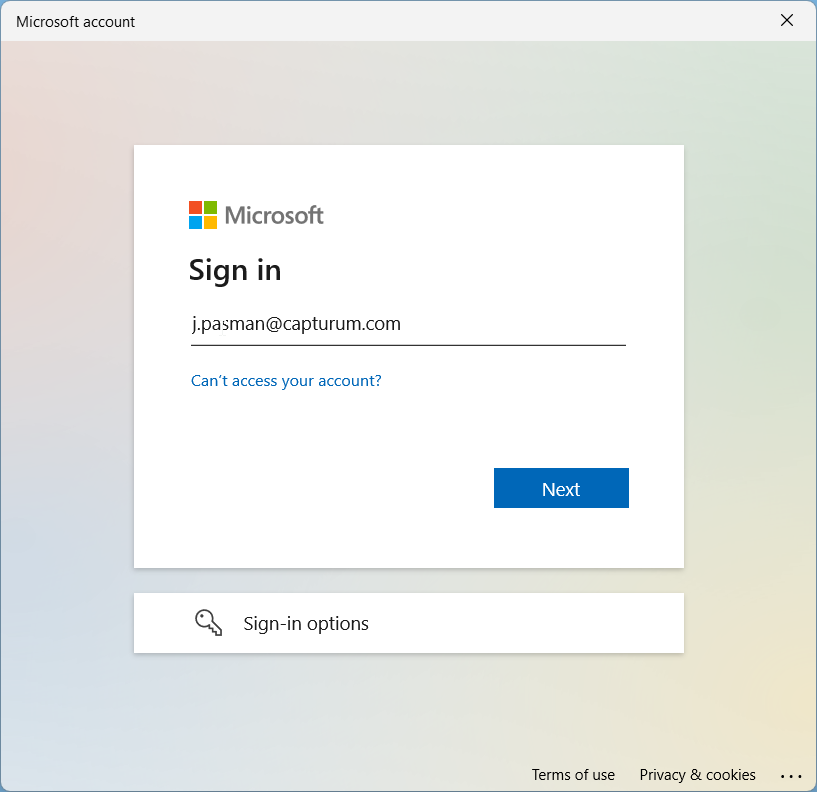 |
Sign in to your E-mail address. |
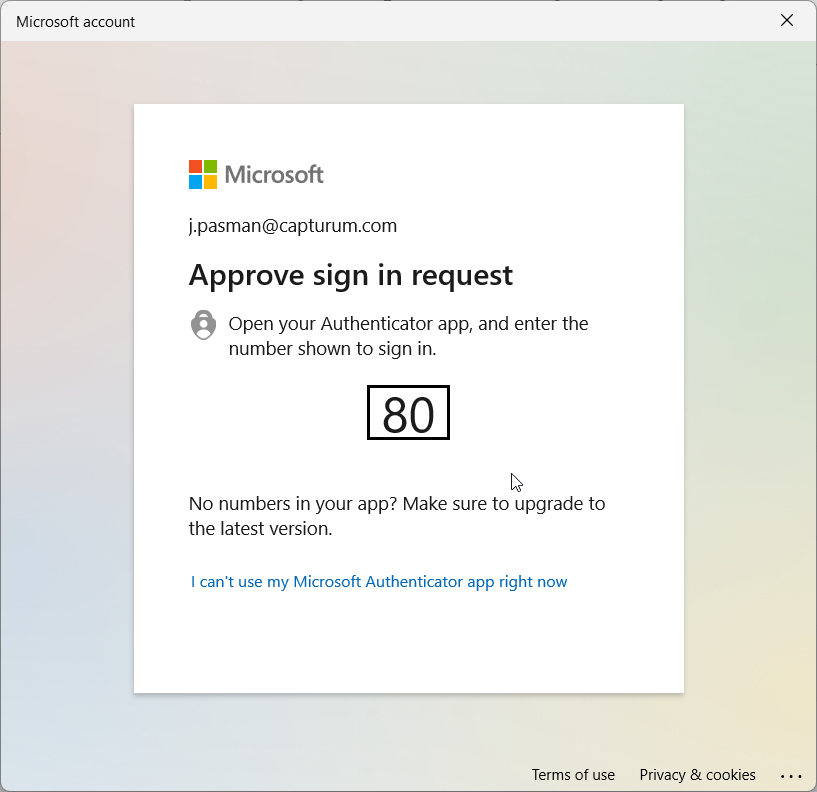 |
Approve the Sign-in on your Authenticator |
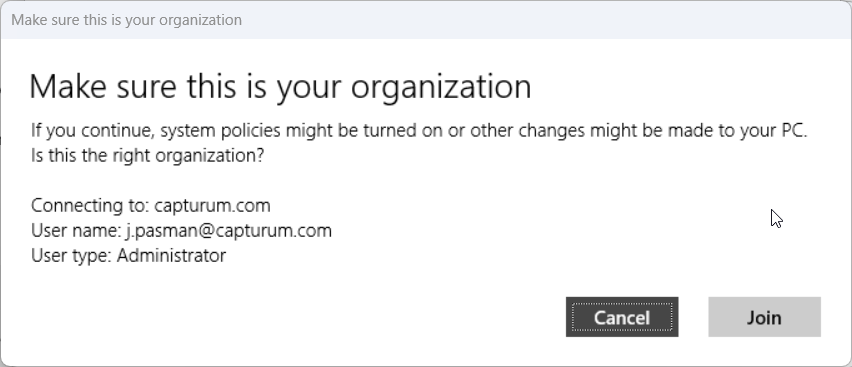 |
Confirm that this is indeed the organization you wish to join |
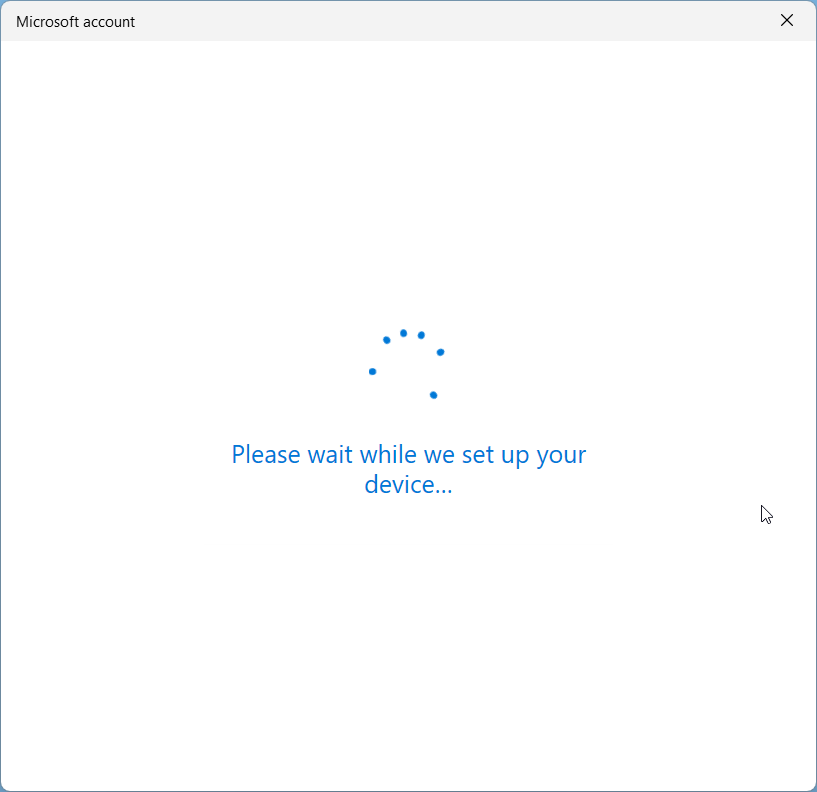 |
Please wait until the process is complete |
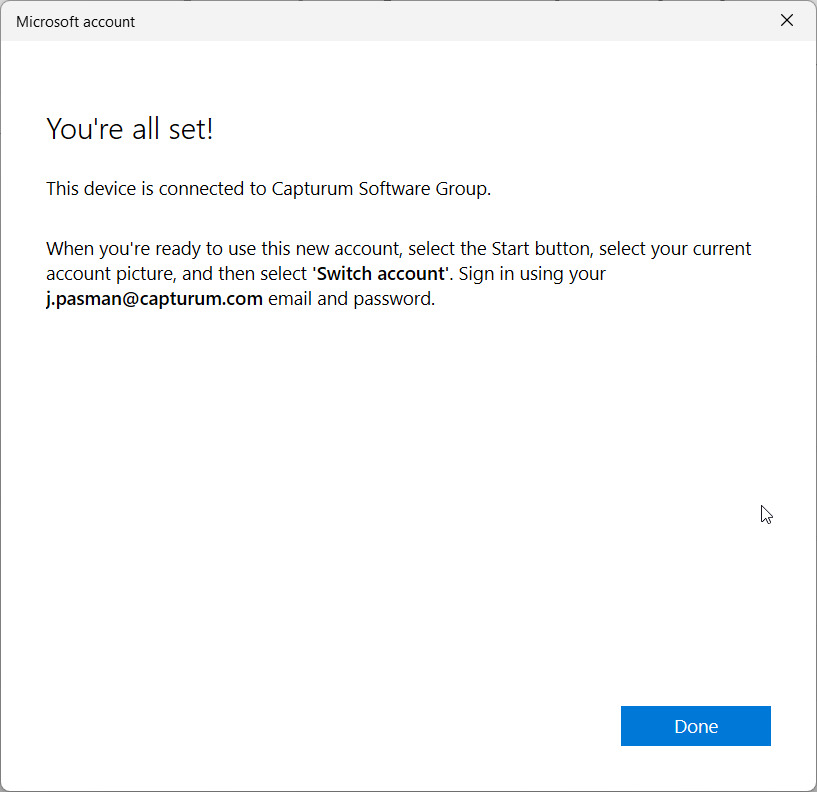 |
Once done, the system will tell so, and you can click on the button “Done” |
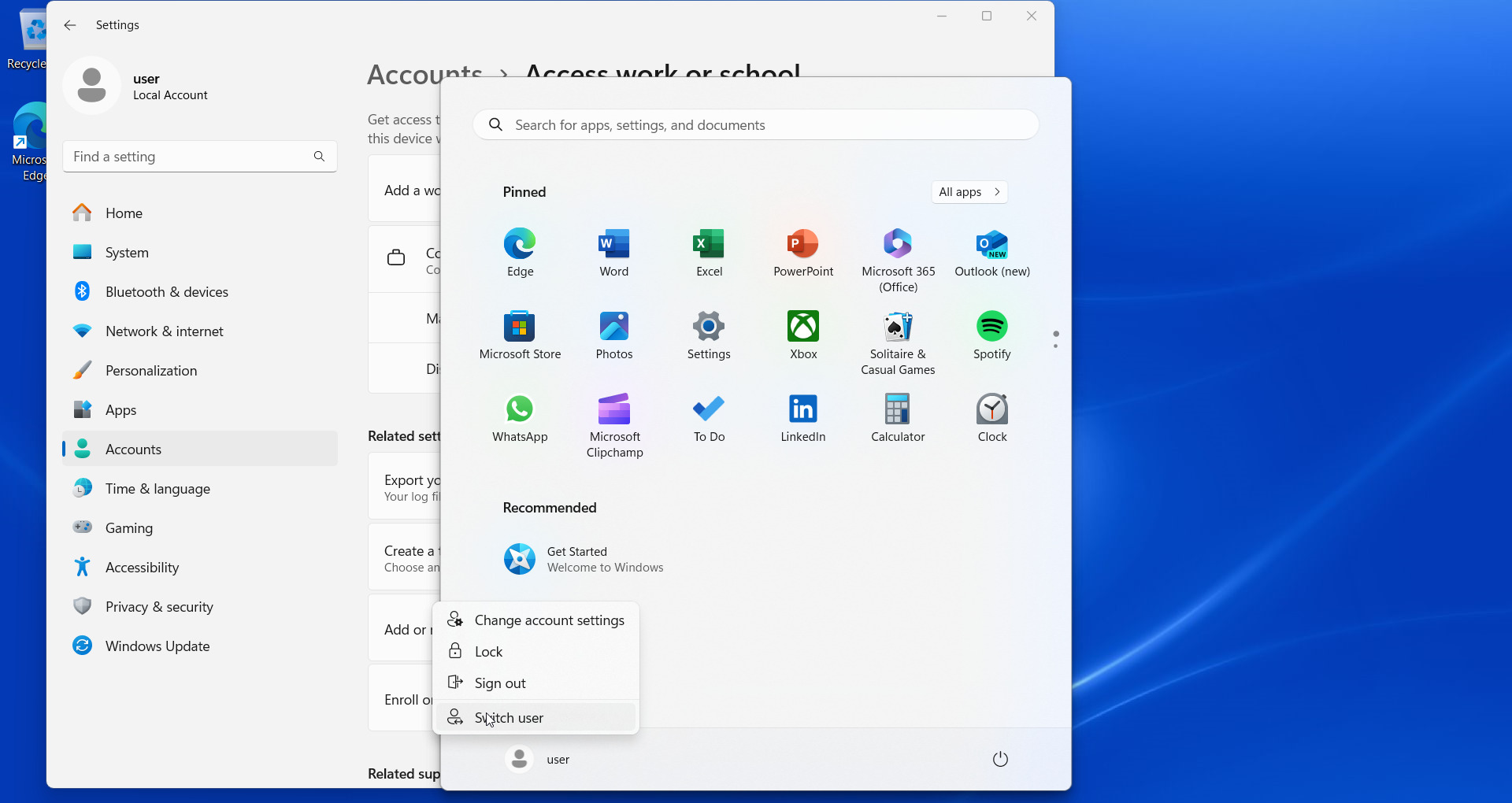 |
Open the start menu, click on the user on the bottom left and click Switch. |
| Open your “Migration” folder on your C drive, and copy the folder ‘Default’. | |
|
Right click on the windows logo, and choose “Run” |
|
Insert the value “%localappdata%\Microsoft\Edge\User Data” and click the button “OK” |
| Paste the folder here, and Keep existing files when asked for it, do not override them! | |
 |
Open Microsoft Edge, menu on the top right and navigate to. “Settings” |
| Switch to the other profile here that was pasted in with the “Default” folder. if required, restart Edge to get it into view. | |
| Restart outlook as needed. Set up your account as needed before, or, if applicable, Outlook will be set up with your account as before. | |
| At https://signature.capturum.nl/ we have a signature generator. This can be used to generate a signature for your E-mail application. We compose our E-mails with the font family “Verdana”, 10 pt. With the color RGB 89,91,96. |
Microsoft Windows - Outlook only
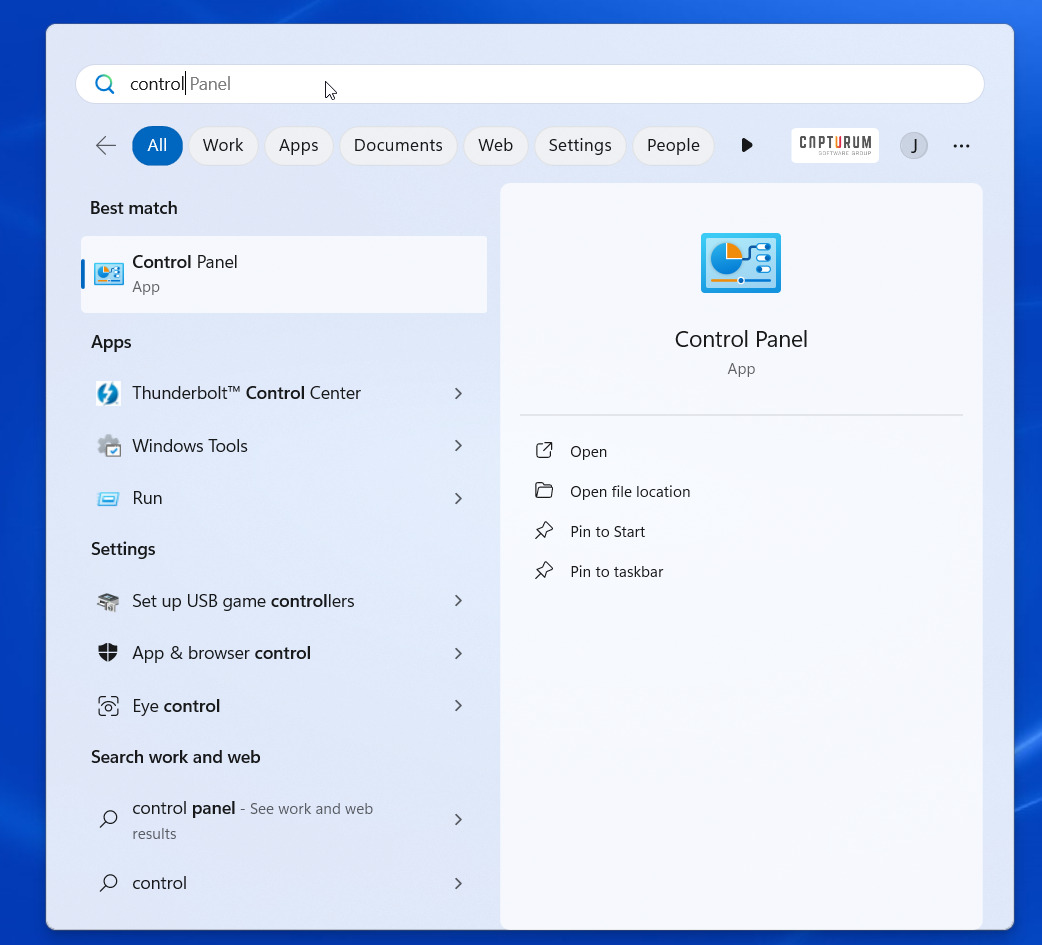 |
Open your Start / Windows menu and search for “Control panel” |
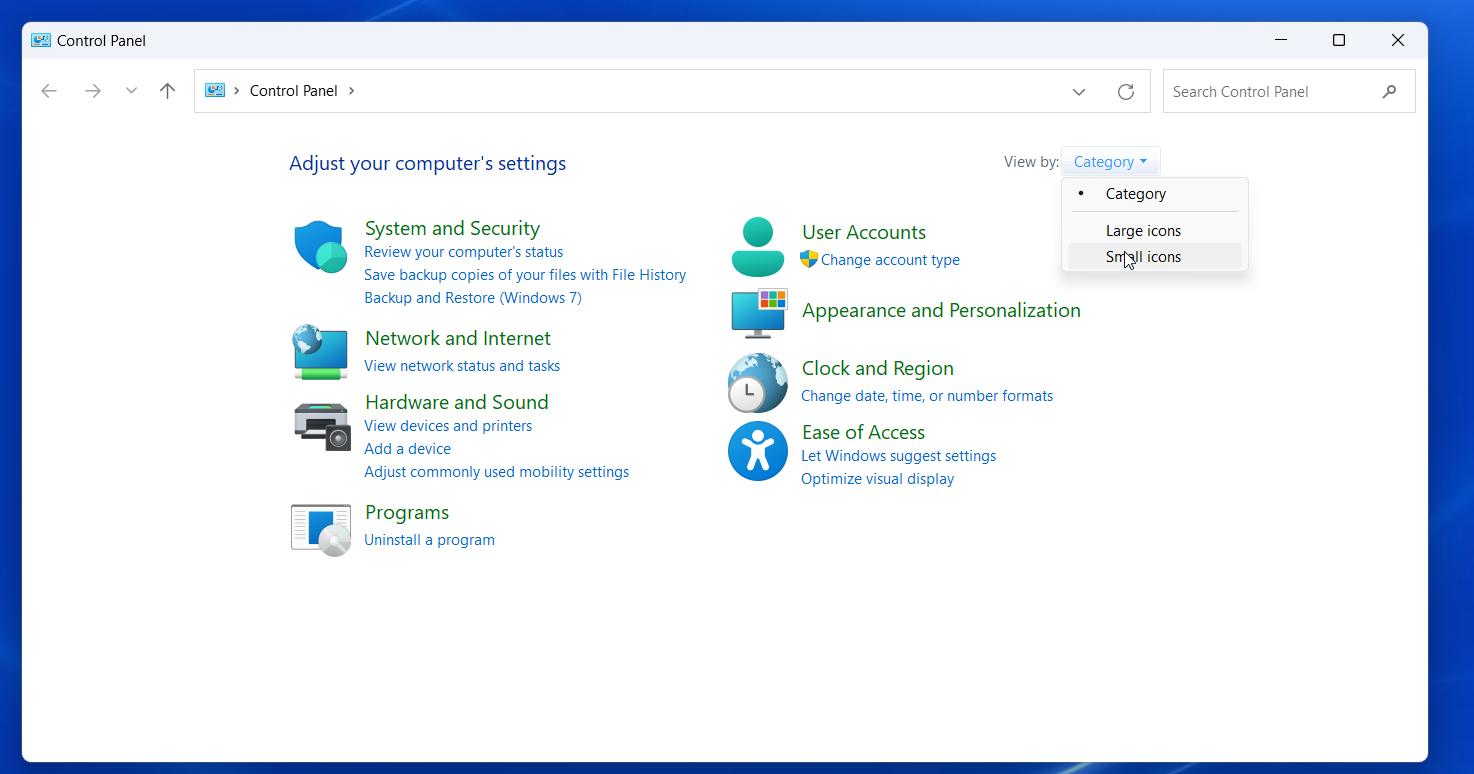 |
Change, if needed, the view to “Small Icons” |
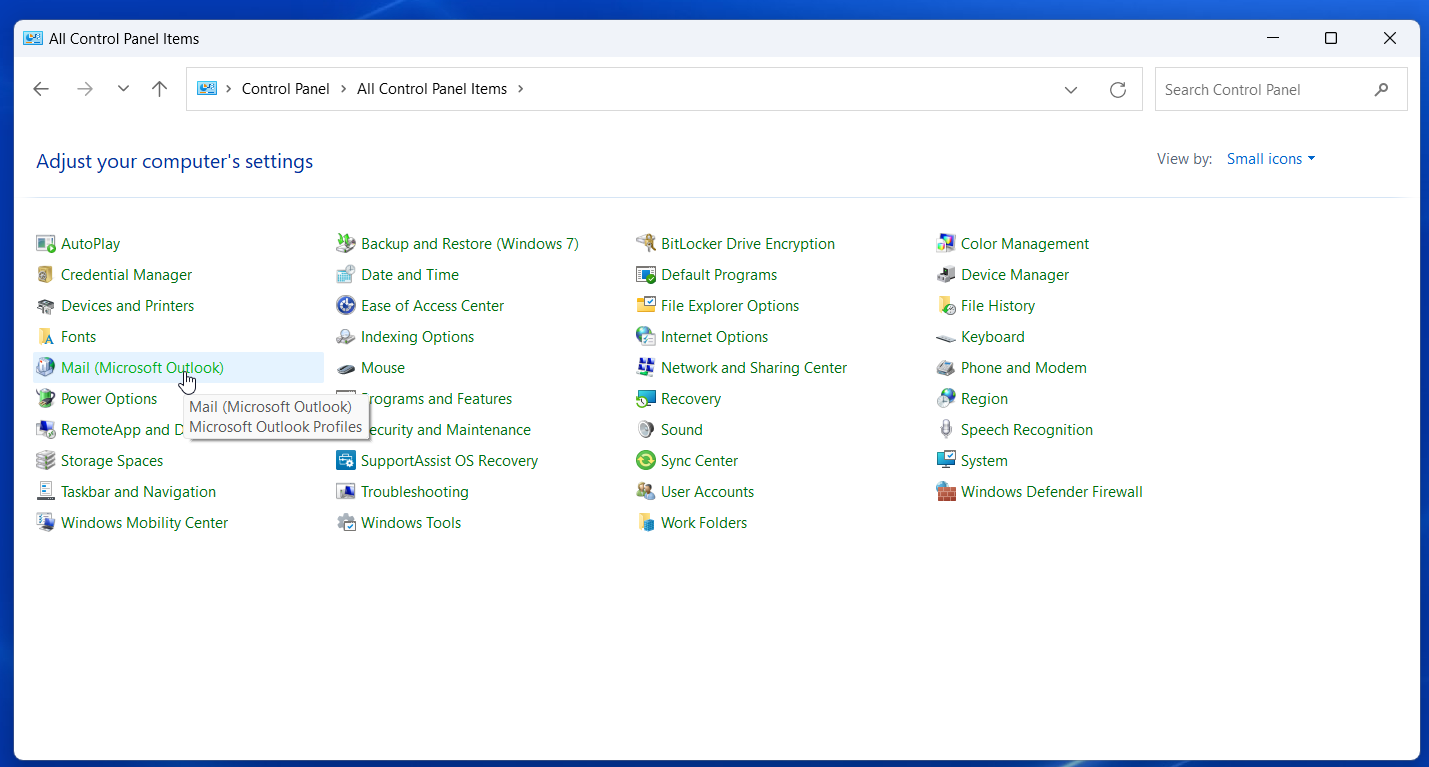 |
Find the Control Panel for “Mail” and open it. |
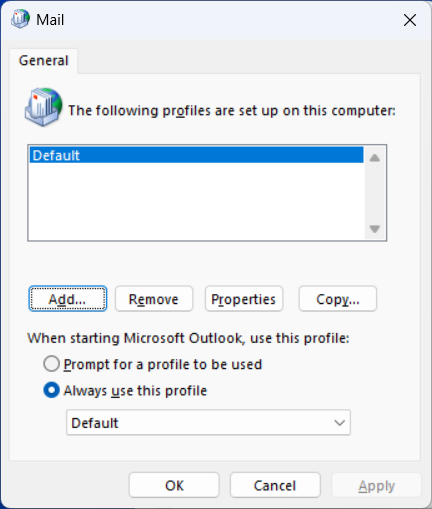 |
There is already a Existing profile for your E-mail. This needs to be replaces. Click on the button “Add” |
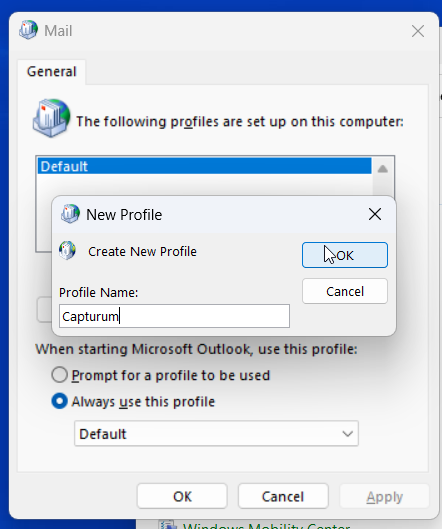 |
Create the new profile with, for example, the name “Capturum” and press the button “OK” |
 |
Fill in your E-mail address in the next screen, and click on the button “Next” |
 |
On the next screen, Uncheck the “Set Up Outlook Mobile on my phone, too” checkbox, and click on the button “Finish” |
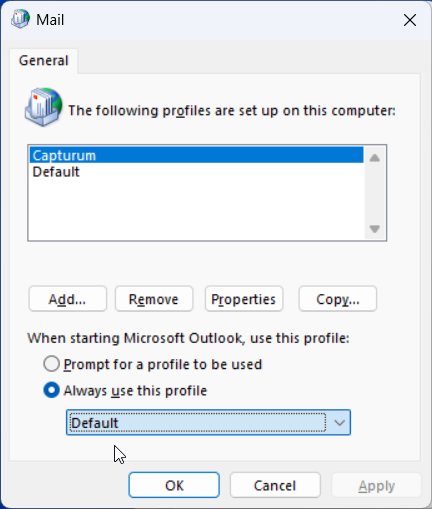 |
You will return to the previous screen with the new profile added to the list. Click on the dropdown below. |
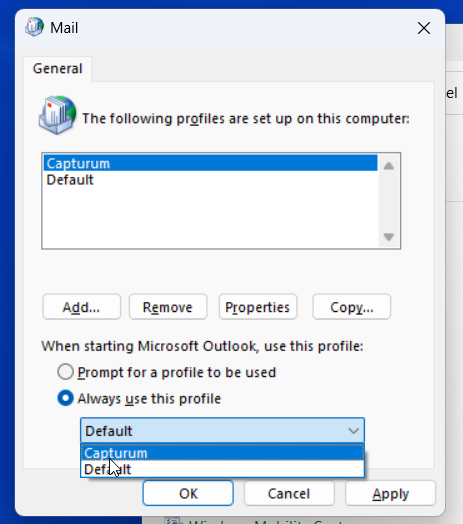 |
Select the newly created profile. |
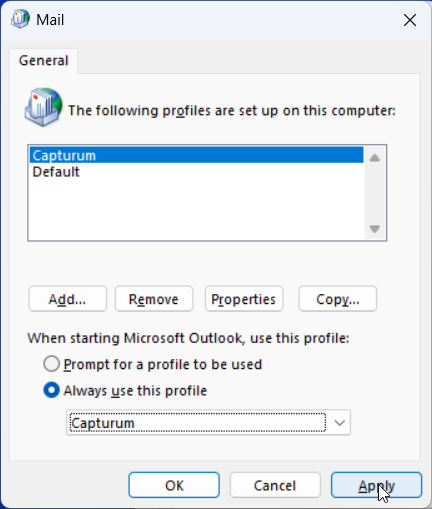 |
After selection, click on the button “Apply” |
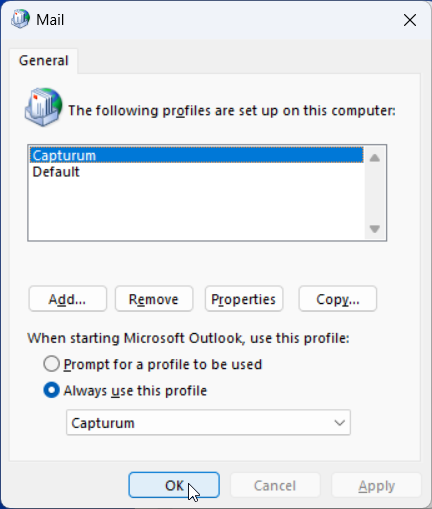 |
Close the window by clicking on the “OK” button. After starting outlook, you will need to set up your Signature and font once again.
At https://signature.capturum.nl/ we have a signature generator. This can be used to generate a signature for your E-mail application. |
Apple MacOS
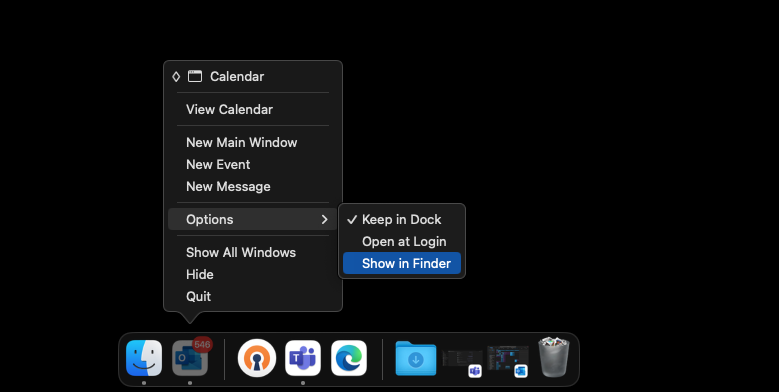 |
Right click on your Outlook icon, navigate to “Options” and click on “Show in Finder” |
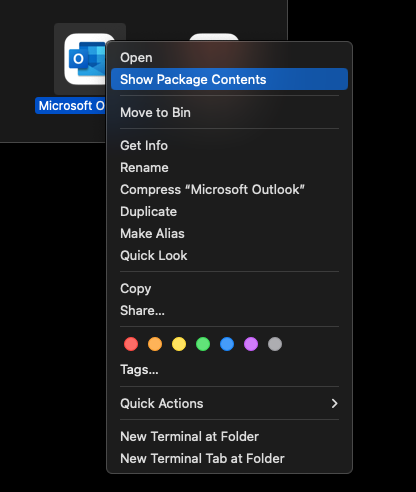 |
Right click on “Microsoft Outlook” and click on “Show Package Contents” |
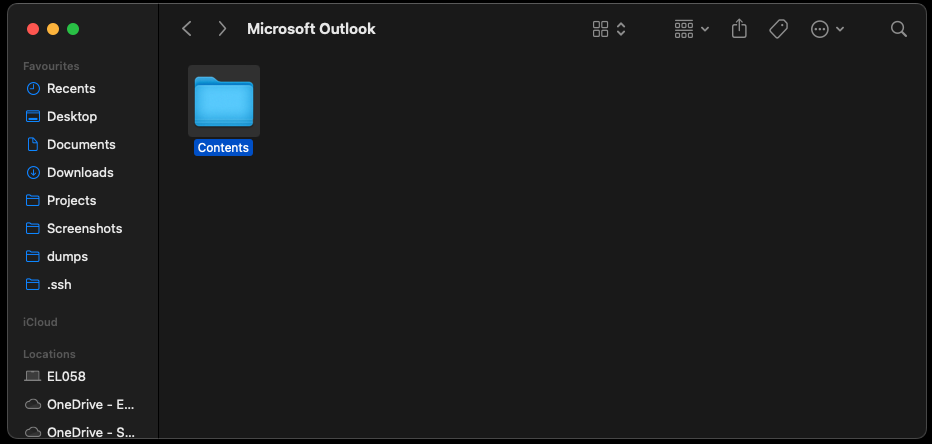 |
Finder should show a folder as presented to the left. Open the folder “Contents” |
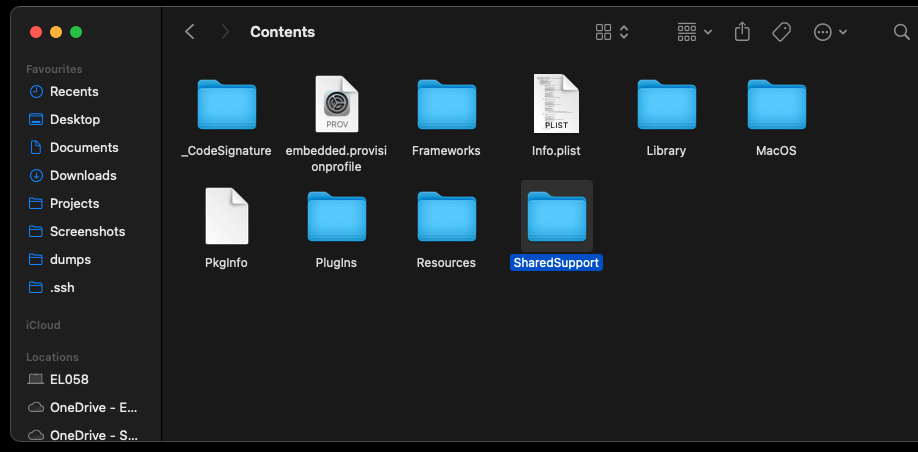 |
Open the folder “SharedSupport” |
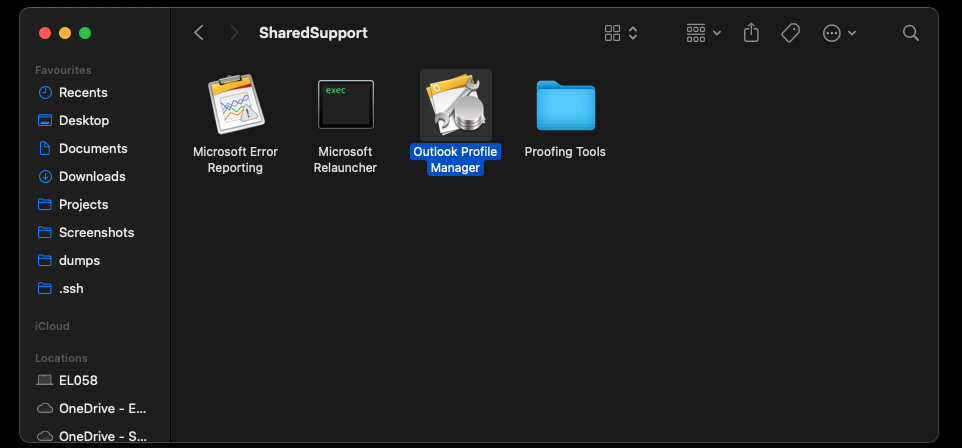 |
Open the application “Outlook Profile Manager” |
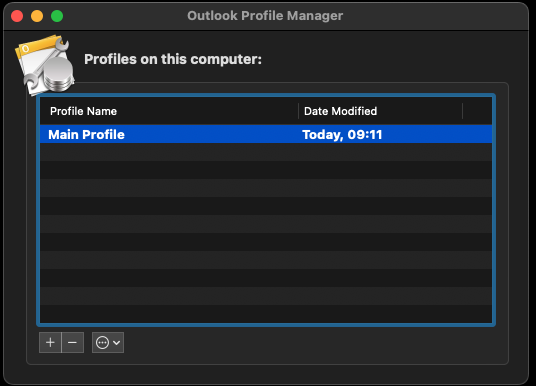 |
Click on the “+” button on the bottom left. |
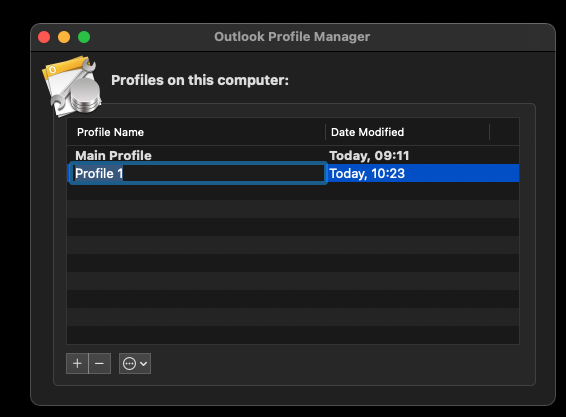 |
Create a new profile, in this example “Capturum” |
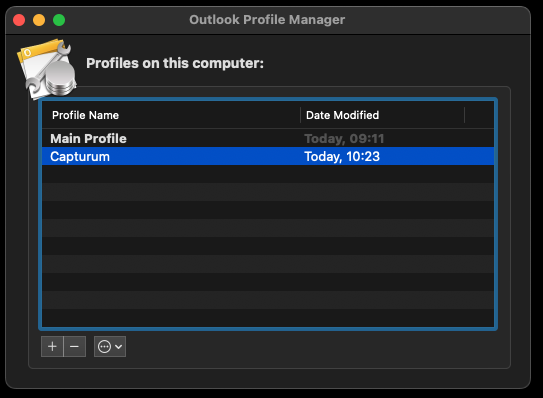 |
Confirm the name, it should show as the screenshot to your left. |
 |
Right click the new profile and click “Set Default” . |
| Restart outlook if needed. Set up your account as needed before, or, if applicable, Outlook will be set up with your account as before. | |
| At https://signature.capturum.nl/ we have a signature generator. This can be used to generate a signature for your E-mail application. | |
| We compose our E-mails with the font family “Verdana”, 10 pt. With the color RGB 89,91,96. |
New Sharepoint URLs
The following Sharepoint URLs have been changed as following:
| https://emendis.sharepoint.com/sites/TEAM4 https://capturum.sharepoint.com/sites/TeamAlpha |
| https://emendis.sharepoint.com/sites/Blueprint https://capturum.sharepoint.com/sites/TeamBlueprint |
| https://emendis.sharepoint.com/sites/CSGBV https://capturum.sharepoint.com/sites/TeamCapturum |
| https://emendis.sharepoint.com/sites/Operations657 https://capturum.sharepoint.com/sites/TeamFinance |
| https://emendis.sharepoint.com/sites/CSG-ISO https://capturum.sharepoint.com/sites/TeamIso |
| https://emendis.sharepoint.com/sites/CSG-Lunch https://capturum.sharepoint.com/sites/TeamLunch |
| https://emendis.sharepoint.com/sites/CSG-WBSO https://capturum.sharepoint.com/sites/TeamWBSO |
| https://emendis.sharepoint.com/sites/CSGDATA https://capturum.sharepoint.com/sites/DataCapturum |
| https://emendis.sharepoint.com/sites/Data https://capturum.sharepoint.com/sites/DataEmendis |
| https://emendis.sharepoint.com/sites/Deelkracht https://capturum.sharepoint.com/sites/CustomerDeelkracht |
| https://emendis.sharepoint.com/sites/DevOps https://capturum.sharepoint.com/sites/TeamDevops |
| https://emendis.sharepoint.com/sites/MDE https://capturum.sharepoint.com/sites/TeamEmendis |
| https://emendis.sharepoint.com/sites/SalvumLT https://capturum.sharepoint.com/sites/TeamEmendisLT |
| https://emendis.sharepoint.com/sites/EmendisSA https://capturum.sharepoint.com/sites/TeamEmendisSa |
| https://emendis.sharepoint.com/sites/Gebr.deMooij https://capturum.sharepoint.com/sites/CustomerDeMooi |
| https://emendis.sharepoint.com/sites/Helpdesk https://capturum.sharepoint.com/sites/TeamHelpdesk |
| https://emendis.sharepoint.com/sites/Operations https://capturum.sharepoint.com/sites/TeamHR |
| https://emendis.sharepoint.com/sites/Team67Intergripdevelopment https://capturum.sharepoint.com/sites/TeamNexus |
| https://emendis.sharepoint.com/sites/Management https://capturum.sharepoint.com/sites/TeamManagement |
| https://emendis.sharepoint.com/sites/Marginpar https://capturum.sharepoint.com/sites/CustomerMarginpar |
| https://emendis.sharepoint.com/sites/TEAM1 https://capturum.sharepoint.com/sites/TeamNeatza |
| https://emendis.sharepoint.com/sites/Notifications https://capturum.sharepoint.com/sites/Notifications |
| https://emendis.sharepoint.com/sites/Projectmanagement https://capturum.sharepoint.com/sites/TeamProjectManagement |
| https://emendis.sharepoint.com/sites/TEAM2 https://capturum.sharepoint.com/sites/TeamRevolution |
| https://emendis.sharepoint.com/sites/Design https://capturum.sharepoint.com/sites/TeamSpectrum |
| https://emendis.sharepoint.com/sites/Testers https://capturum.sharepoint.com/sites/TeamTesters |
| https://emendis.sharepoint.com/sites/SmartQA https://capturum.sharepoint.com/sites/TeamSmartQA |
| https://emendis.sharepoint.com/sites/FotosCapturumBedrijfsuitje https://capturum.sharepoint.com/sites/FotosCapturumBedrijfsuitje |